Archer Issues Management Solution
Issues Management in Archer provides teams with a structured approach to identifying, assessing, and responding to issues. This guide details key processes, including logging and finding, creating remediation plans, providing status updates, and requesting exceptions.
This solution is part of Archer Core Solutions.
On this page
Key Components
Architecture Diagram
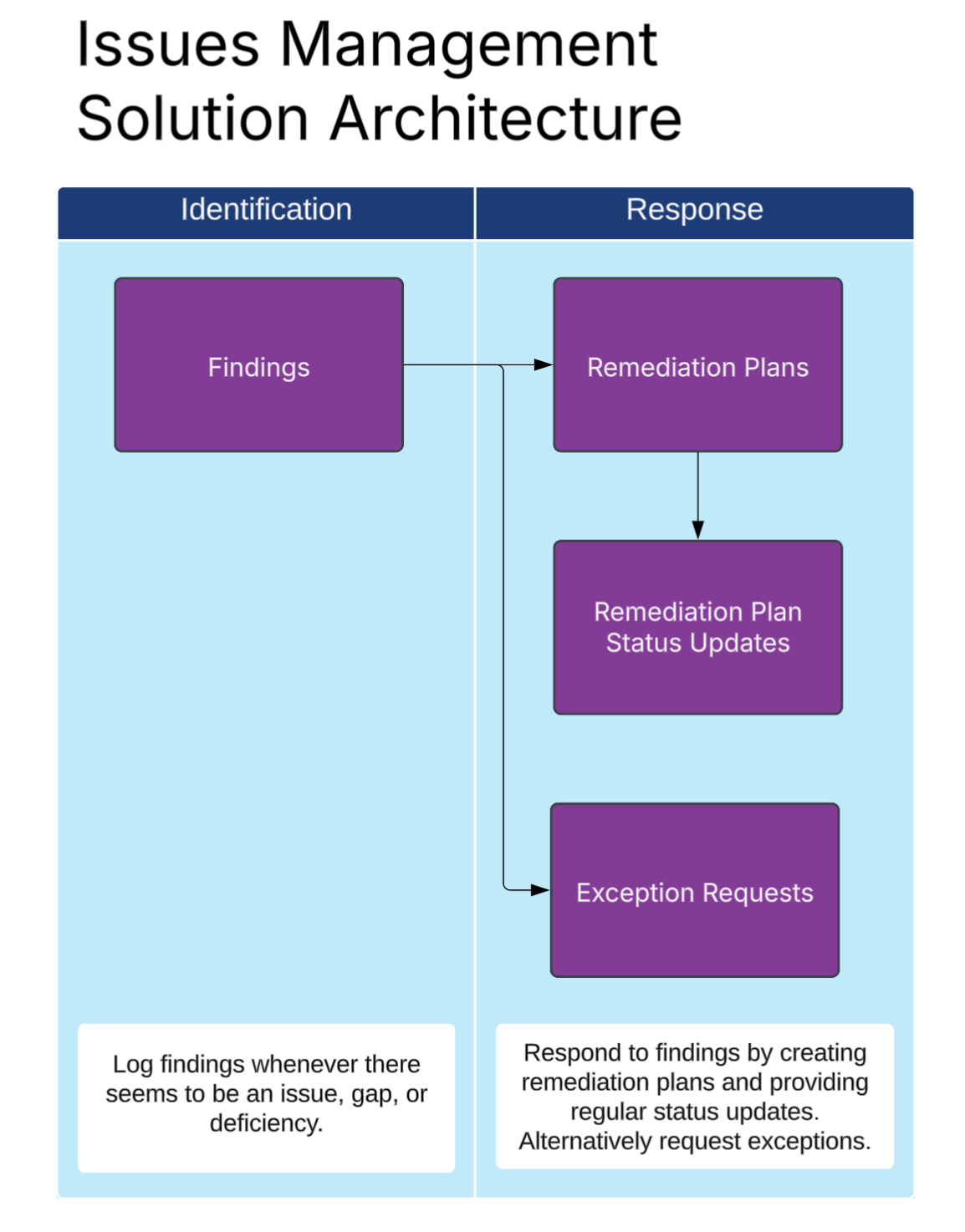
The following diagram shows the relationships between the applications in the solution.
Core Applications
| Applications | Description |
|---|---|
|
Finding |
Captures an issue identified through assessments, audits, tests, or other activities. Includes severity, source, impacted business areas, and due dates. |
|
Remediation Plan |
Documents the plan of action to address and resolve a finding. Includes steps to be taken, responsible parties, and target completion dates. |
|
Remediation Plan Status Update |
Used to track progress on the remediation plan over time. Allows users to log updates, report delays, and show completion readiness. |
|
Exception Request |
Allows users to request an exception when a finding cannot be remediated within the required time frame or if alternate controls are in place. |
Access Groups
| Group Name | Description |
|---|---|
|
Everyone |
Available to all users in the system, as issues management is a core function of the Archer platform. |
Data Feeds (Automations)
No data feeds are needed for this solution.
Dashboards
| Dashboard | Description |
|---|---|
|
Issues Management Dashboard |
Provides a consolidated view of the issues in the organization by showing issues aging reports and remediation plan activity. |
Workflow Overview
This section provides step-by-step guidance for key workflows.
Managing an Issue
Issues represent confirmed control failures, process gaps, or risk exposures that require remediation. Whether they originate from audits, risk assessments, incidents, or other sources, Archer’s issue management workflow ensures accountability and tracks progress from identification to closure.
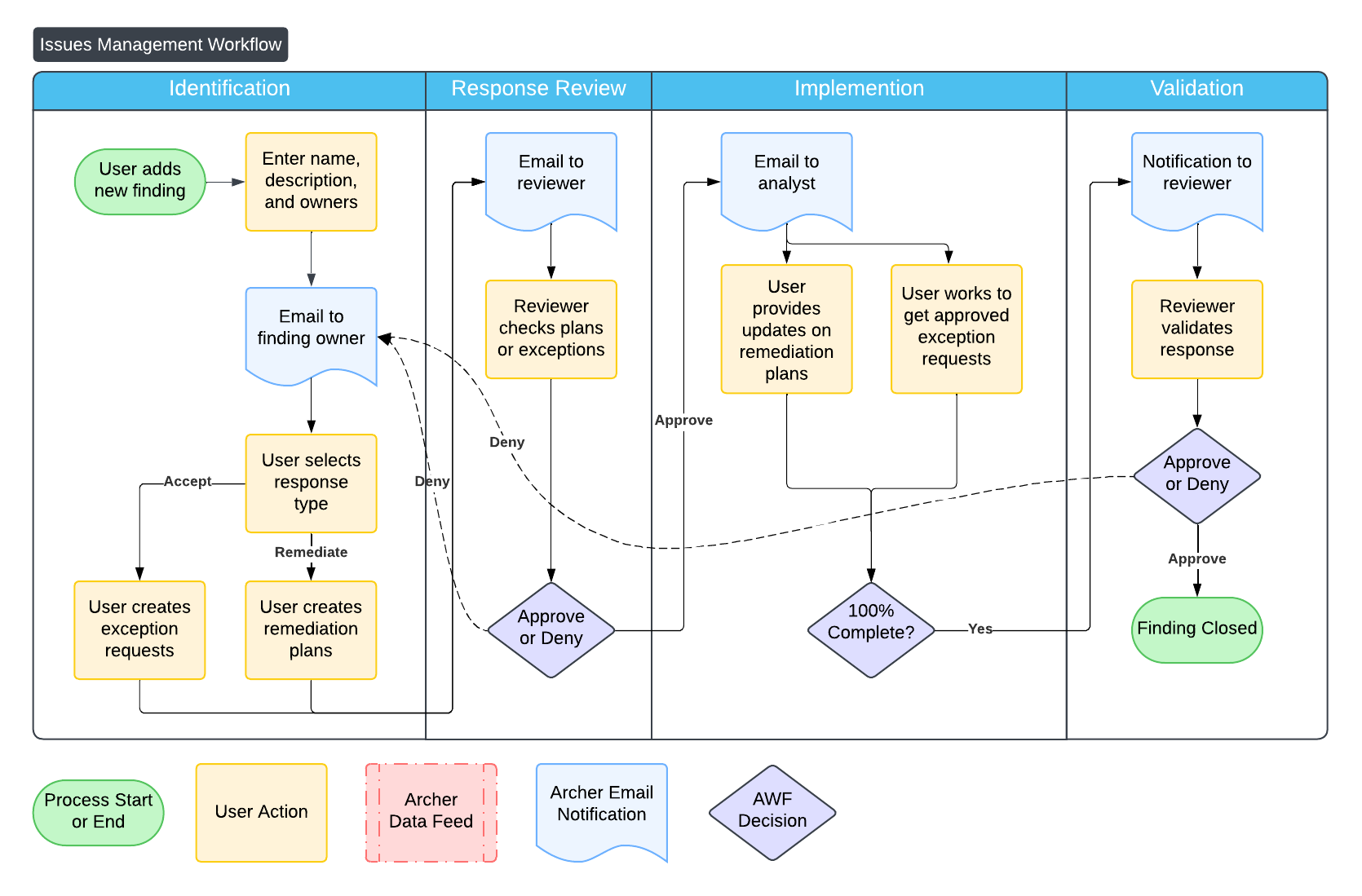
The following diagram shows how issues are managed.
-
Identify an issue.
-
Navigate to the Findings application and click Add New.
-
Fill in the Finding Name and enter a description in the Finding field.
-
Select the Source and Criticality.
-
(Optional) Connect to other GRC elements using the Related Records fields
-
Assign an Owner and a Reviewer. Enter a due date.
-
Click Save.
-
-
Respond to an issue.
-
In the Response section, choose Accept Risk or Remediate Risk.
-
Accept Risk creates an exception request.
-
Remediate Risk creates one or more remediation plans.
-
-
Click Save and create the exception requests or remediation plans as needed.
-
Submit the record for review. The reviewer analyzes proposed work before issues enter the implementation stage. If any changes are needed, the issue returns to the identification stage.
-
-
Implement remediation plan.
-
The issue owner submits status updates for remediation plans or gets an exception request approved.
-
To create a status request, navigate to the remediation plan and click Add on the remediation plan status update.
-
(Optional) Upload supporting documentation.
-
When all remediation plans are complete, the issue enters the validation stage and is sent to the reviewer.
-
-
Validate the remediation. The reviewer validates that remediation occurred and determines if the issue can be closed.
Requesting an Exception
In some cases, a business unit may determine that an issue cannot be remediated by the target date due to technical limitations, cost, or strategic considerations. In these cases, the finding assignee can request an exception. This allows the risk, audit, or compliance team to formally review and approve a temporary or permanent deviation from standard remediation expectations. You can also request an exception request to a policy or process.
The following steps detail how to request an exception:
-
Open the relevant issue in the finding application.
-
Navigate to the Exception Request section of the record and add a new record.
-
Enter a title and the following details:
-
Why the issue cannot be remediated as planned
-
What compensating controls (if any) are in place
-
Any timelines or conditions for review or reassessment
-
-
(Optional) Attach supporting documentation.
-
Click Submit for Review to route the exception to the designated review team. You're notified when the exception is approved or rejected.
Submitting a Remediation Plan Status Update
As work on an issue progresses, it's important to keep the remediation plan current. Regular status updates help stakeholders monitor progress, prevent delays, and ensure accountability. Archer allows issue owners to update the remediation plan and document any milestones or changes directly in the issue record.
The following steps detail how to submit a remediation plan status update:
-
Navigate to the Remediation Plan you want to update.
-
Add a new Remediation Plan Status Update.
-
Add a Status Comment and enter the % Complete.
-
Click Submit.
Best Practices
This section contains some best practices to consider to run a successful program.
Implement issues management first
If you're implementing GRC in phases, start with Issues Management before expanding to audits, risks, or compliance. Tracking and resolving issues is a foundational GRC capability that provides immediate value, improves accountability, and supports future reporting. It also establishes a centralized workflow for documenting control gaps and corrective actions across the enterprise.
Reopen issues when exception requests expire
When a time-bound exception expires, don’t leave the issue dormant, reopen it to ensure appropriate follow-up. Reassess the risk and determine whether remediation is now feasible, or whether a new exception must be requested. This helps maintain risk visibility and avoids long-term acceptance of unresolved gaps.
Copy exception requests to request an extension
If a prior exception was approved but circumstances haven’t changed, use the Copy function to quickly generate a new request using the original rationale and controls. Update only the necessary fields to save time and ensure consistency in the documentation trail.
Define regular status update frequency
Set clear expectations for how often issue owners must provide updates—monthly, quarterly, or based on issue severity. Archer’s workflow supports this, but a documented cadence helps GRC teams manage expectations, reduce surprises, and provide real-time reporting to leadership and regulators.
To automate this, you can create a campaign in the application builder to automatically create remediation status updates on a regular basis.
Require evidence before validating remediation plans
Don’t rely on verbal confirmation or vague updates—require objective evidence before marking an issue as remediated. This may include screenshots, updated policies, reports, or system logs. Validating remediation with supporting documentation builds auditability, enforces accountability, and improves confidence in issue closure.
Frequently Asked Questions
Can I skip review steps for simple issues?
Yes. Archer’s workflow can be configured to bypass or streamline review steps for issues that meet certain criteria—such as low severity or internal-only findings. This helps reduce administrative burden for routine items while still enforcing formal review for higher-risk issues.
Can I automatically assign ownership or reviewers?
Yes. Archer can use business logic (Calculated Fields or Data-Driven Events) to automatically assign issue owners or reviewers based on criteria like business unit, issue type, or source. This ensures consistency and speeds up the assignment process.
Can Archer send automatic reminders for status updates?
Yes. Archer supports scheduled notifications and escalations, which can be configured to remind issue owners to update their remediation status, especially if the target resolution date is approaching or overdue.
Can different groups use Issues Management, but only see their issues?
Yes. Archer provides role-based access control through Record Permissions. You can restrict visibility so that users only see issues related to their assigned business unit, division, or function—allowing multiple groups to manage issues securely within the same system.
Can reviewers be determined by issue source?
Yes. Workflow logic can be configured so that different reviewers are assigned based on the issue’s origin—such as audit, compliance, risk assessment, or incident. This ensures that the right function is responsible for validating the remediation based on context and expertise.