Archer Resilience Management Solution
The Archer Resilience Management solution enables organizations to identify critical processes, conduct BIAs, maintain BC/DR plans, and respond effectively to incidents and crises.
This solution is part of Archer Core Solutions.
For information on the latest changes to the solution, see the Release Notes.
On this page
Key Components
Solution Architecture
The following diagram shows the relationships between the applications in the solution.
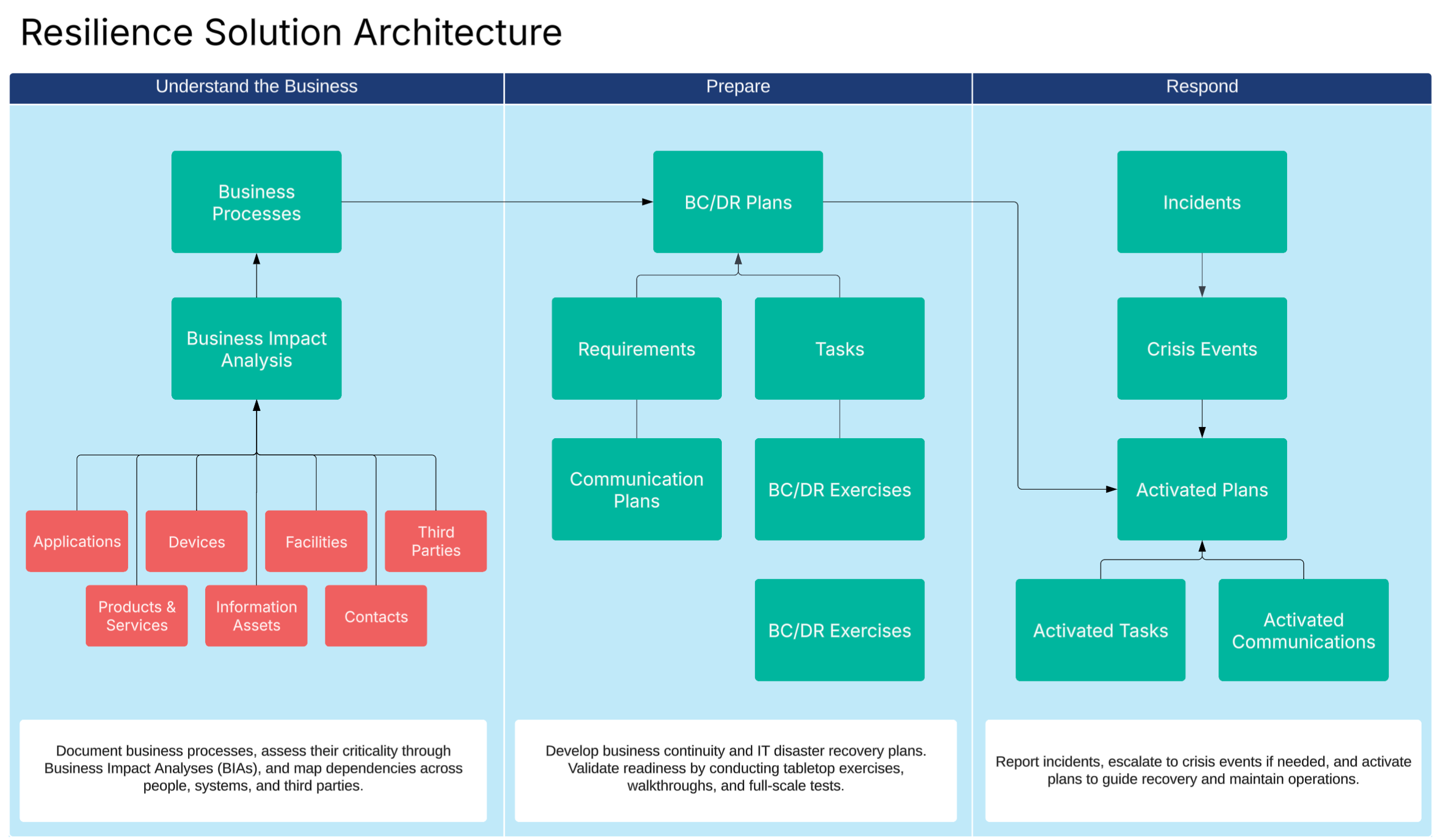
Core Applications
| Applications | Description |
|---|---|
|
Business Processes |
Business continuity begins with understanding and managing business processes. Archer allows organizations to store and maintain a comprehensive list of business processes, ensuring clarity in ownership and critical attributes. Archer enables process owners to define dependencies on applications, third parties, facilities, and organizations within the BIA. |
|
Business Impact Analysis (BIA) |
BIAs are essential for identifying the most critical business processes and assessing their potential impact in the event of a disruption. BIAs typically include evaluating financial, operational, regulatory, customer, and reputational impacts. Organizations also use the BIA to determine Recovery Time Objective (RTO), Recovery Point Objective (RPO), and Maximum Tolerable Period of Disruption (MTPD). Additionally, mapping dependencies like applications, vendors, and facilities ensures a comprehensive understanding of what it takes to be operationally resilient. |
|
BIA Campaign |
The BIA campaign allows a user to launch multiple business impact analysis at the same time. The user creates a new record in the BIA Campaign application, selects the processes they want BIAs created for, and clicks Generate BIAs to launch a campaign. This creates and saves a BIA for each process selected. A data feed then triggers after to initiate the BIAs. |
|
Business Continuity & Disaster Recovery (BC/DR) Plans |
BC/DR planning enables organizations to document response strategies for potential business disruptions. Archer facilitates alignment between BC/DR Plans and identified critical processes, ensuring a structured approach to continuity planning. Organizations can assign roles and responsibilities to key personnel, ensuring accountability and preparedness. Additionally, BC/DR plans link directly to BIAs and associated risks, allowing for seamless integration between planning and risk management. |
|
BC/DR Plan Exercise |
Regular testing of BC/DR plans ensures they remain effective and actionable. Archer supports scheduling and execution of plan tests, capturing test results, and identifying lessons learned. Organizations can refine their response strategies based on testing outcomes, strengthening their overall resilience framework. |
|
Incidents |
Incident management focuses on tracking and responding to disruptions impacting operations. Archer enables organizations to log incidents, assess severity, and determine the appropriate response actions. If necessary, incidents can be escalated to crisis events, triggering predefined workflows and activating BC/DR plans to mitigate potential damage. |
|
Crisis Events |
When incidents escalate into high-impact events, crisis management processes come into play. Archer provides tools to convert incidents into crisis events, activating response teams and workflows to ensure a coordinated response. Organizations can monitor real-time updates and resolutions, which translates to effective decision-making during critical situations. |
|
Activated Plans |
When a plan is launched during an exercise or a crisis event, the BC/DR Plan is copied into the activated plans application. This version of the plan is a copy that allows users to check off plans, enabling the resilience team to see progress made during an event or exercise. |
Access Groups
| Group Name | Description |
|---|---|
|
Resilience Management |
This access group gives full admin access to all resilience applications. Users in the group will receive emails when new incidents have been created, as well as when BIAs or Plans need to be reviewed. |
|
Resilience User |
This access group gives limited access to all resilience applications. Users in this group will be allowed to own processes, conduct BIAs, own plans, and report incidents. |
Data Feeds (Automations)
| Data Feed | Description |
|---|---|
|
DF.RS.AWF.01.01 Create BIA Shells from Campaign |
This data feed runs when a user creates a BIA campaign and clicks Launch BIAs. A BIA Campaign creates multiple BIAs for each process selected. Users save time because they don't have to manually assign BIAs to processes. |
|
DF.RS.AWF.01.02 Update BIA with Dependencies |
This data feed runs when a user creates a BIA. It looks at the business process targeted and pull information, like the dependencies, RTO, RPO, and MTPD to provide the process owners a better experience. This allows them to update changes to the BIA rather than creating it from scratch. |
|
DF.RS.AWF.01.03 Update BP with Dependencies |
This data feed runs when the BIA has been fully approved. It copies all of the dependencies selected on the BIA and sends them back to the actual business process record. This makes sure that your process library is up to date. |
|
DF.RS.AWF.02.01 Activated Plan Update |
This data feed runs when a user creates an activated plan. Users are required to select a BC/DR Plan when creating the activated plan. Once saved, Archer copies all of the key components of the BC/DR Plan to the activated plan, such as the plan details, recovery tasks, communication plans, and requirements. This allows users to walk through the plan live, mark tasks as completed, add ad-hoc tasks, and launch notifications without editing the original plan. |
Dashboards
| Dashboard | Description |
|---|---|
|
Resilience Planning Dashboard |
Provides a consolidated view of Business Impact Analysis (BIA) data, BC/DR plan statuses, and testing outcomes. Users can track critical process dependencies, monitor recovery objectives, and assess gaps in resilience planning. |
|
Incident and Crisis Management Dashboard |
Focuses on tracking incidents, crisis events, and activated BC/DR plans. It provides insights into incident trends, response effectiveness, and escalation patterns to help organizations strengthen their crisis response capabilities. |
Workflow Overview
This section provides step-by-step guidance for key resilience workflows in Archer.
Running a BIA
The following diagram shows the process for running a BIA.
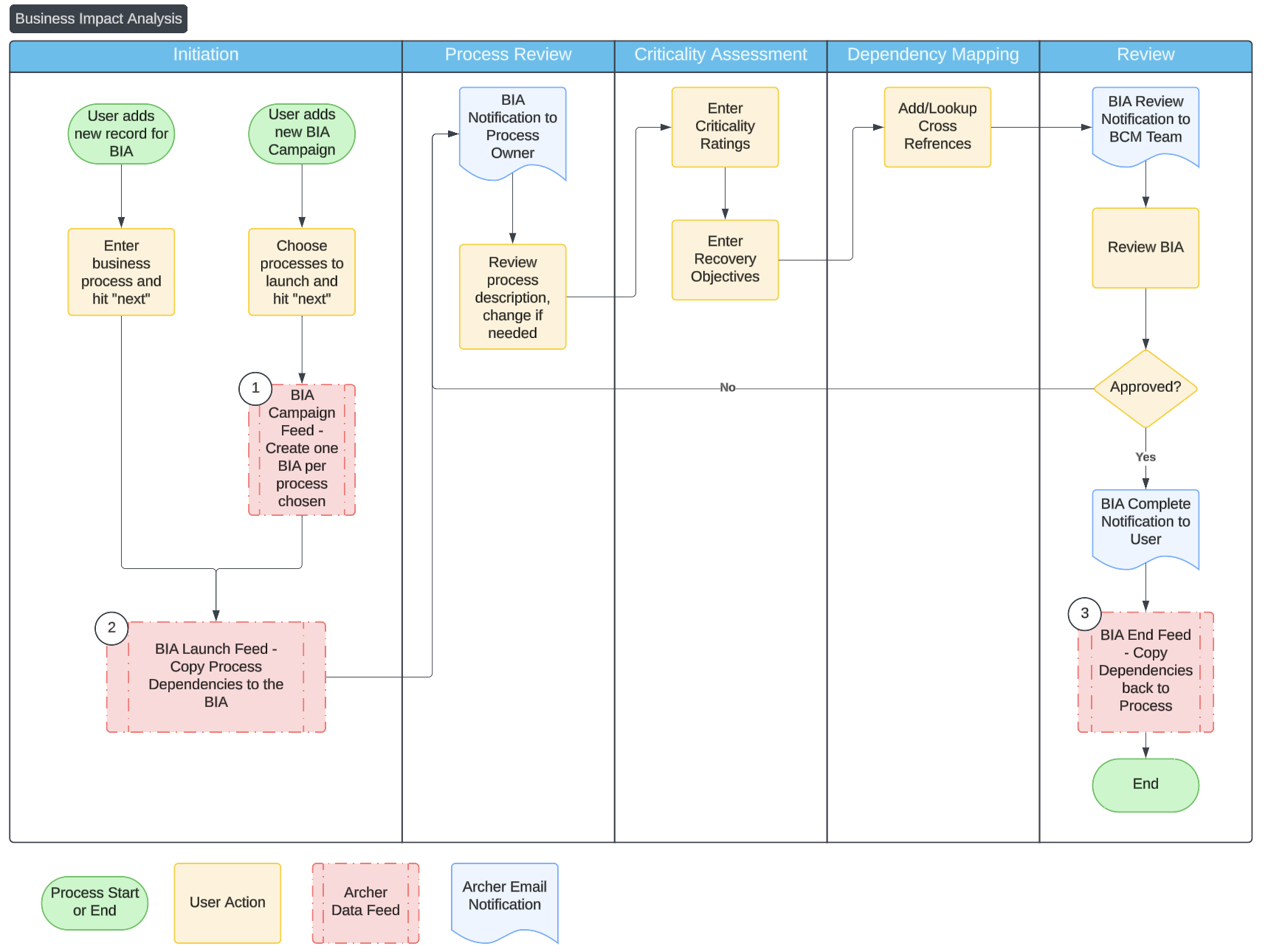
Launch Multiple BIAs
-
Navigate to the BIA Campaign Application.
-
Enter a name for the campaign and select Processes.
-
Click Generate BIAs.
-
Refresh the screen to see the newly created BIAs.
Launch a Single BIA
-
Create a new record in the Business Impact Analysis application.
-
Select a process.
-
Click Launch BIA.
Complete the BIAs
Owner: Process owner
-
Review process description and suggest changes.
-
Complete criticality ratings and recovery objectives.
-
Map dependencies (applications, vendors, facilities).
-
Submit for BCM review and approval.
Review the BIA
Owner: BCM managers
-
Review the BIA.
-
Approve or reject the BIA.
Creating a BC/DR Plan
-
Create new record in the BC/DR Plan application
-
Fill in the details of the plan, including owner and target.
-
Navigate through the tabs to draft your plan:
-
Provide purpose, scope, and assumptions.
-
List out recovery tasks and requirements.
-
Define communication strategies and outline team members.
-
-
Click Submit for review and approval.
Inactivating a BC/DR Plan
-
Go to the plan you want to inactivate.
-
Use the action button to edit the plan.
-
Once in the draft status, use the action button to inactivate the plan.
Managing an Incident
The following diagram shows how to manage an incident.
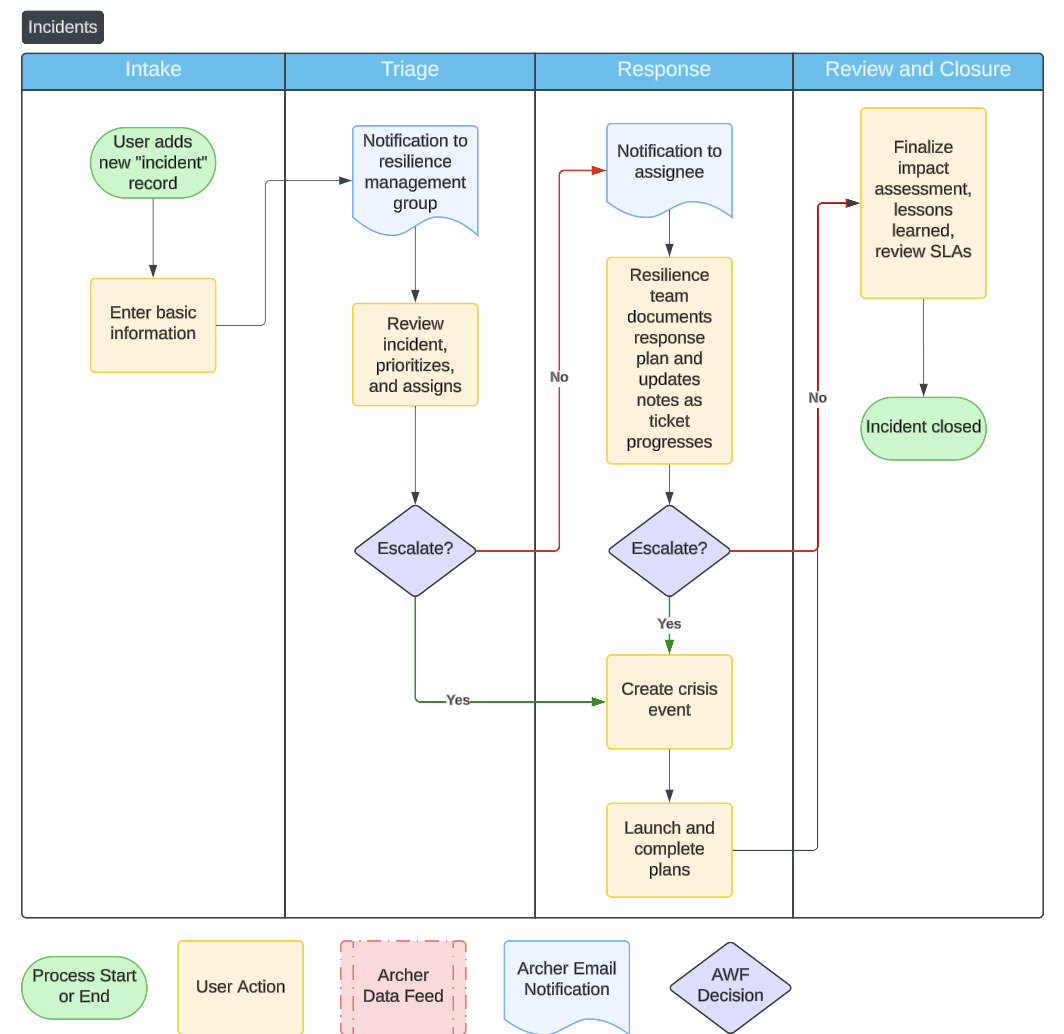
The following steps detail how to manage an incident:
-
Create a new record in the Incidents application.
-
Enter general details and click Submit.
-
An email is sent to the resilience team. The incident shows up on their dashboard. The resilience team can then:
-
Assess severity and determine if escalation is needed.
-
Assign the incident and move to the response stage.
-
-
The incident owner responds to the incident and take notes in Archer. If needed, they can escalate the incident. Mark the incident as resolved and move the incident to the review stage
-
If escalation happens, then the incident owner will be prompted to create a crisis event.
-
From the crisis event, they can activate relevant BC/DR Plans, send out communications, and document their efforts to manage the crisis
-
Once the crisis event is closed, the original incident will move to the final stage, review, as If they have completed the response stage.
-
-
In the incident, document the resolution, map to broader GRC elements like risks and loss events, and document any lessons learned.
Running an Exercise (Testing Plans)
Exercises validate that plans work. In Archer, there is a BC/DR Plan Exercise application where most of this work happens. In the exercise, the owner of the test can plan a scenario and scope, select plans to test and activate, then run the exercise and record their results with lessons learned and follow-up actions.
Planning an Exercise
-
Create a new record in the BC/DR Plan Exercise application.
-
Provide general details like the name, category, scenario details, test type, BC/DR Plan(s) being tested, owner, and participants.
-
Click Begin Test.
Testing
-
Use the Activate Plans? field to determine if you want to launch any of the BC/DR Plans chosen. If you don't want to launch plans, select no and move on.
-
Using the Response Notes and Observations, list all steps done during the exercise.
-
Complete the activate plans or walk through the exercise using the plans and determine the test results.
-
The minimum RTO, RPO, and MTPD are automatically inputted based on the selected BC/DR Plans.
-
Use the radio buttons to indicate if recovery objectives are met.
-
Write details in the Test Result Notes section.
-
-
Write a Lessons Learned Summary in the box provided. If needed, create findings to document any required follow-ups.
Launching Plans
The following diagram details how plans are launched.
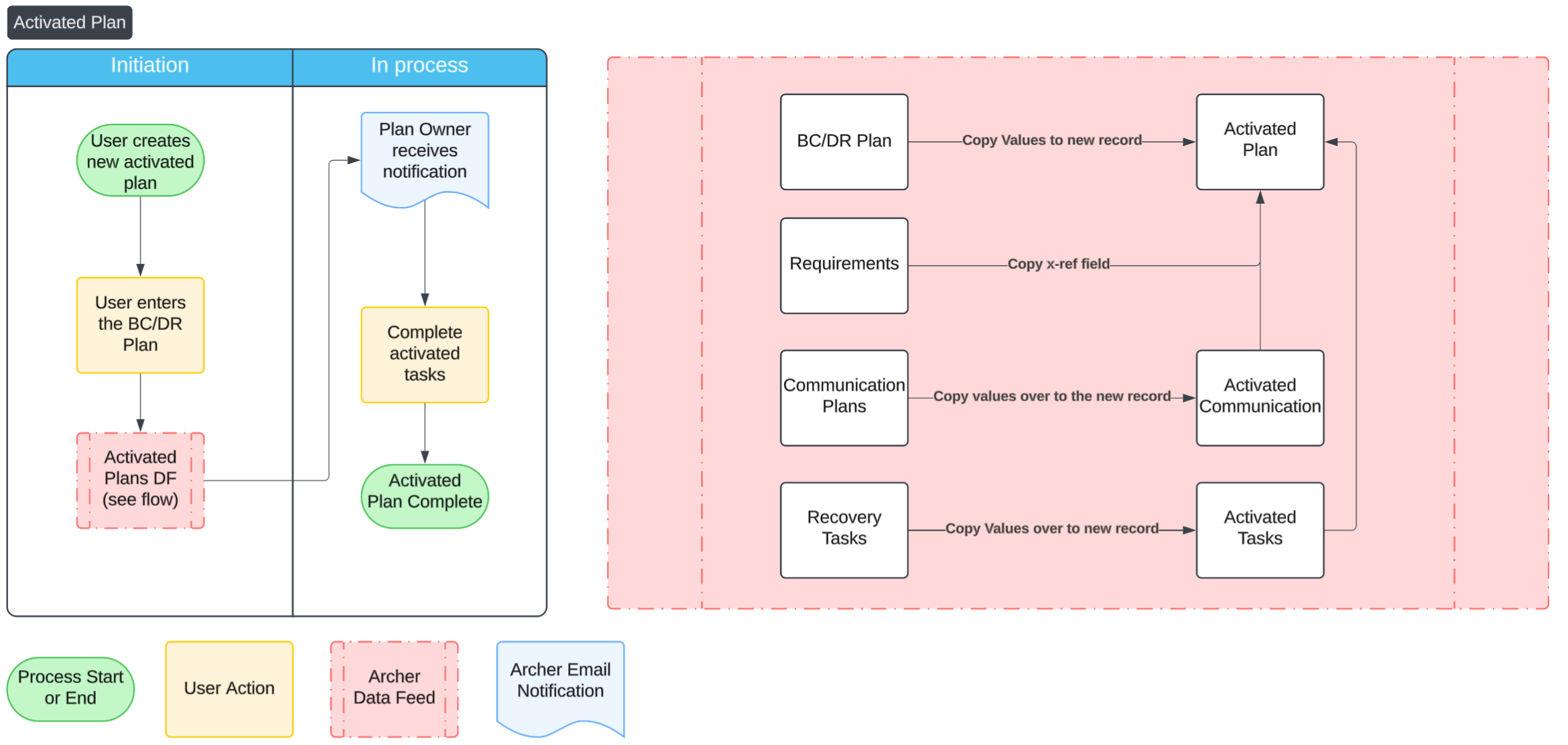
The following steps detail how to launch a plan:
-
Add a new activated plan.
-
Select the BD/DR Plan to launch.
-
Save the record.
-
Refresh the page when the data feed completes.
-
Repeat for all plans needing an activation.
Note: Activated communications launch as soon as they are created.
Best Practices
Archer’s resilience solution is based on several authoritative sources.
-
The FFIEC Business Continuity Handbook, which outlines regulatory expectations for financial institutions.
-
NIST Special Publication 800-34, which provides contingency planning guidance for federal agencies and other organizations.
-
ISO 22301, the international standard for business continuity management systems (BCMS), which offers a structured approach to implementing, maintaining, and improving business continuity programs.
It’s recommended that organizations align to these standards and use Archer to operationalize the processes. This section contains some best practices to consider to run a successful business continuity program.
Keep business process data up to date
Organizations should run a BIA annually to make sure they're keeping process descriptions up to date and can adapt to changes in the business. Processes that are more important should be tested and monitored more regularly.
Conduct regular BIAs to reflect changing risks
While Archer comes out of the box with impact ratings, you should keep up to date with changing risks and modify the BIAs as needed. This could mean changing the answer options, adding new questions, or modifying content to more accurately understand the impacts.
Test BC/DR plans at least annually
Testing may include full simulations or simple walkthroughs. Testing plans is the best way to identify gaps and deficiencies in the plan. Testing should be done at least annually or more frequently for larger plans. By default, Archer allows you to track these tests and reporting can facilitate this process.
Scenario Analysis should be the primary method of testing
While it's possible to do simple walkthroughs of plans in Archer one at a time, the most effective way to become more resilient is by determining a plausible scenario with extreme impacts on the business and taking action from there. This may include thinking through communication plans, launching multiple BC/DR Plans, and creating ad-hoc actions and strategies.
Ensure incidents are properly documented and escalated when necessary
Many incidents in organizations do not get reported properly. Archer guarantees the right information should be collected at the right stages, but it’s up to employees to actually report incidents when they happen. Ensure incident reporting is clearly defined, easy to access, and assisted as needed.
Work with Enterprise Risk Management and Third Party Risk Management
A business continuity team that works alone does not have the information and expertise needed to protect the organization. Working with enterprise risk management (ERM) gives better insight into vulnerabilities and risks posed to the organization. ERM and business continuity should share the same business process library to reduce confusion and redundancy in reporting.
Supplier resilience is an important component to avoiding losses during disruptions. A large amount of disruptions are caused by or influenced by third parties. By working with the third party team to understand supplier dependencies, resilience teams are more prepared to take quick action in outages and disruptions. Third parties should be mapped to processes during the BIA.
Frequently Asked Questions
What data should I have in place before I get started?
The resilience use case relies heavily on your enterprise assets, or applications that are used in the dependency mapping. At minimum, you need your business process library ready to go in order to launch BIA, but you should also populate applications like facilities, applications, and third parties so they can be mapped during the BIA process.
| Application | Format | Priority |
|---|---|---|
|
Business Unit |
A list of organizational units with owners |
Required |
|
Business Process |
A list of business processes or business functions. |
Required |
|
Application |
A list of software applications used at the organization, or an integration with a CMDB |
Recommended |
|
Contacts |
A list of key stakeholders, third party contacts, or employees. |
Optional |
|
Facilities |
A list of locations, sites, offices for the organization. |
Optional |
|
Devices |
A list of hardware technology |
Optional |
|
Third Parties |
A list of suppliers, vendors, or other third parties |
Optional |
|
Information Assets |
A list of key databases, spreadsheets, or data assets |
Optional |
|
Products and Services |
A list of services and products that your organization offers to it’s customers or clients |
Optional |
Can I change the questions on the procedures?
Yes. You can make changes to questions to meet your business needs. Changing the values lists of results and adding additional questions can make this application better align with your program.
If we are not ready for control tests, is there a way to still mark the effectiveness of the controls?
Yes. Navigate to the controls application as an admin, then modify Control Effectiveness Rating to be a manually-set field. This allows users to select the control effectiveness right on the control, simplifying the process.
You may also want to remove the full control tests from the layout and related testing fields. Additionally, you can make Control Effectiveness Rating a private field and assign users and groups access to it.
Can the criticality determine the RTO, RPO, and MTPD?
Yes. The RTO, RPO, and MTPD are set manually. This is intentional, as nuanced processes may have unique RPO or MTPD guidelines regardless of criticality. However, these fields can be modified to be calculated fields by admins.
Can I run BIAs against something other than processes?
While Archer’s BIA focuses on processes, some organization’s BIAs target other entities like applications or business units. In this case, it's still recommend that you create a business process and run it against that, even if there is only one process per application. This reduces implementation time and is what regulators and standard setters expect from business continuity programs.
Can I change the workflow steps?
Yes. Archer allows users to change the steps of any workflow. Consider the following variables when changing workflow steps:
-
The first stage, which allows the users to launch the BIA, should remain. End users do not see this stage, but it triggers a data feed that preps the BIA.
-
The last approval step triggers a data feed.
-
The BIA specifically uses Layouts to show different results, so combine the layouts and add it to one in use.
-
Update the workflow stages values list to match your new phase.
Can I have BIAs sent to our internal continuity team and not to the process owners?
Out of the box, Archer sends BIAs to the user listed in the process owner field within the business process. However, this can be adjusted through two methods:
-
Update the advanced workflow task and the notification of the BIA to send tasks to the resilience analyst.
-
Put the resilience analyst as the process owner.
How can I give everyone access to create incidents?
With the new user experience in SaaS, you can create a new incident, copy the link, and provide it to users. Additionally, admins can put a quick link on a user’s default dashboard. Users must have an account in Archer with the proper roles (Incidents (C)) in order to create incidents within Archer.
If you're providing this link to employees outside of Archer or non-provisioned users, it's recommended to use Archer Engage.