BlueVoyant Supply Chain Defense Integration
BlueVoyant offers insights into vulnerabilities affecting third parties. By integrating with the Archer Third Party Profile, you can identify emerging vulnerabilities on the horizon and those already recorded in your Third Party Profile. The integration updates daily, providing summary information on dashboards and detailed drill-downs into specific vulnerabilities.
This integration is an offering provided through the Archer Exchange to enhance your existing Archer implementation. The Archer Exchange provides offerings to expand the use of Archer solutions into new business processes and address specific industry, geographic, regulatory, or technical requirements.
On this page
Release notes
| Release Date | Archer Platform Release | Notes |
|---|---|---|
| March 2025 | 2024.04 | Initial Release |
Overview
Key features and benefits
The BlueVoyant Supply Chain Defense integration enables organizations to do the following.
- Synchronize third-party information with BlueVoyant cyber risk data and document emerging vulnerabilities linked to Third Party profiles.
- Capture third-party responses to emerging vulnerabilities, including acknowledgments, escalations, and remediation actions.
- Track risk score impacts, escalation status, and analyst comments for documented vulnerabilities.
- Access detailed cyber risk insights, including overall and category scores, detected findings, and emerging vulnerabilities.
- Leverage the BlueVoyant dashboard, custom reports, and automated workflows in Archer to monitor risks and drive remediation efforts.
Prerequisites (ODA and system requirements)
|
Components |
Prerequisites |
|
Archer Solution Area |
Third Party Governance |
|
Archer Use Case |
Third Party Catalog |
|
Archer Applications |
Third Party Profile |
|
Uses Custom Objects |
No |
|
Requires Archer On-Demand Application (ODA) License |
This offering requires three (3) Archer On-Demand Application licenses. |
|
Archer Platform Requirements |
Archer Platform Release 2024.04 and later |
|
Supported Archer Environments |
The following Archer environments are supported:
Note: Archer SaaS clients can leverage this offering. The offering comes with a .Net routine, which must be installed on a client owned and managed server that can communicate with the Archer instance. |
|
Partner/Vendor Requirements |
A valid license with BlueVoyant is required. Additional fees may apply. |
Compatible use cases and applications
Impacted fields (Integrations only)
| Archer Application |
Archer Target Field |
(Partner/Vendor Name) Source Field |
|---|---|---|
| Third Party Profile | Attributes (BlueVoyant) | companyInfo/companies/attributes |
| Third Party Profile | bvid | companyInfo/companies/bvid |
| Third Party Profile | Exceeds Risk Tolerance (BlueVoyant) | companyInfo/companies/exceedsRiskTolerance |
| Third Party Profile | Number of Escalated Findings (BlueVoyant) | companyInfo/companies/numberOfEscalatedFindings |
| Third Party Profile | Number of Open Findings (BlueVoyant) | companyInfo/companies/numberOfActionableOpenFindings |
| Third Party Profile | Overall Risk Level (BlueVoyant) | companyInfo/companies/riskScore/riskLevel |
| Third Party Profile | Overall Risk Score (BlueVoyant) | companyInfo/companies/riskScore/score |
| Third Party Profile | Portfolio (BlueVoyant) | companyInfo/companies/portfolios/portfolioName |
| Third Party Profile | Primary Domain (BlueVoyant) | companyInfo/companies/primaryDomain |
| Third Party Profile | Primary Name (BlueVoyant) | companyInfo/companies/primaryName |
| Third Party Profile | Risk Category Score Impact – Adversarial Threats (BlueVoyant) |
companyInfo/companies/categoryScores/adversarialThreats/scoreImpact |
| Third Party Profile | Risk Category Score Impact – Email Security (BlueVoyant) | companyInfo/companies/categoryScores/emailSecurity/scoreImpact |
| Third Party Profile | Risk Category Score Impact – IT Hygiene (BlueVoyant) | companyInfo/companies/categoryScores/itHygiene/scoreImpact |
| Third Party Profile | Risk Category Score Impact – Malicious Activity (BlueVoyant) | companyInfo/companies/categoryScores/maliciousActivity/scoreImpact |
| Third Party Profile | Risk Category Score Impact – Vulnerabilities (BlueVoyant) | companyInfo/companies/categoryScores/vulnerability/scoreImpact |
Additional Resources
The following additional resources are available for this offering:
- Third-party website: https://bluevoyant.com
Components
Architecture diagram
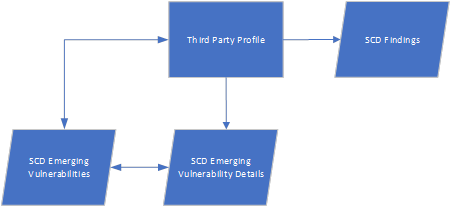
The following diagram shows the relationships between the applications that make up the BlueVoyant Supply Chain Defense Integration.
Process diagram
The process begins when a user enters a valid bvid into a Third Party Profile record. Next, an integration routine runs to generate four XML files from BlueVoyant data. Finally, four data feeds run sequentially which populate data into the Third Party Profile record, SCD Emerging Vulnerabilites, SCD Emerging Vulnerability Details, and SCD Findings.
Applications
|
Application |
Description |
|
Third Party Profile |
The Third Party Profile application captures data describing third parties which are related to your company. BlueVoyant data is added to the Third Party Profile |
| SCD Emerging Vulnerabilities | Stores records for Emerging Vulnerabilities identified by BlueVoyant that may or may not yet be affecting Third Party Profile records. |
| SCD Emerging Vulnerability Details | Provides information about SCD Emerging Vulnerabilities that have directly affected a Third Party Profile. Details how the Third Party has reacted to the Emerging Vulnerability, to include acknowledgements and escalations. |
| SCD Findings | Stores findings linked to Third Party Profile records from BlueVoyant. Details any actions taken, risk score impacts, escalation status, and analyst comments. |
Personas and access roles
| Persona | Description |
|---|---|
| Third Party User | Uses Dashboards, iViews and records to understand the Third Party risk posture |
Installing the integration
Security Considerations
The information in this publication is provided "as is". Archer makes no representations or warranties of any kind with respect to the information in this publication, and specifically disclaims implied warranties of merchantability or fitness for a particular purpose. Client is solely responsible for ensuring that the installation of the application is performed in a secure manner. Archer recommends clients perform a full security evaluation prior to implementation.
Installation Overview
Complete the following tasks to install BlueVoyant Supply Chain Defense Integration.
Step 1: Prepare for the installation
-
Ensure that your Archer system meets the following requirements:
-
Archer Platform version 2024.04 and later
-
-
Read and understand "Packaging Data" in the (Undefined variable: ArcherVariables.pro) Platform Help.
Step 2: Install the package
Installing a package requires that you import the package file, map the objects in the package to objects in the target instance, and then install the package.
Task 1: Back up your database
There is no Undo function for a package installation. Packaging is a powerful feature that can make significant changes to an instance. Back up the instance database before installing a package. This process enables a full restoration if necessary.
An alternate method for undoing a package installation is to create a package of the affected objects in the target instance before installing the new package. This package provides a snapshot of the instance before the new package is installed, which can be used to help undo the changes made by the package installation. New objects created by the package installation must be manually deleted.
Task 2: Import the package
-
From the menu bar, click
 > Application Builder > Install Packages.
 - In the Available Packages section, click Import.
- Click Add New, then locate and select the package file that you want to import.
- Click OK.
The package file is displayed in the Available Packages section and is ready for installation.
Task 3: Map objects in the package
Important: This step is required only if you are upgrading to a later version of the offering.
-
From the menu bar, click
> Application Builder > Install Packages. - In the Available Packages section, locate the package you want to map.
- In the Actions column, click
 for that package.
The analyzer examines the information in the package. The analyzer automatically matches the system IDs of the objects in the package with the objects in the target instance and identifies objects from the package that are successfully mapped to objects in the target instance, objects that are new or exist but are not mapped, and objects that do not exist (the object is in the target but not in the source).
When the analyzer is complete, the Advanced Package Mapping page lists the objects in the package file and corresponding objects in the target instance.
- On the Advanced Mapping page, click to open each category and review the icons next to each object to determine which objects you must map manually.
The following table describes the icons. Icon
Name
Description

Awaiting Mapping Review
Indicates that the system could not automatically match the object or one of its children to a corresponding object in the target instance.
Objects marked with this icon must be mapped manually.
New objects should not be mapped. Select Do Not Map from the drop-down menu to clear this icon for an individual object, or click Do Not Map to clear the icon for all unmapped objects.

Mapping Completed
Indicates that the object and all children are mapped to objects in the target instance, or that they have been marked as Do Not Map. Nothing more needs to be done with these objects in Advanced Package Mapping.
Note: You can run the mapping process without mapping all objects. The
icon is for informational purposes only. - For objects awaiting mapping review, do one of the following:
- To map each object individually, use the drop-down menu in the Target column to select the object in the target instance to which you want to map the source object. To leave an object unmapped, select Do Not Map in the Target column.
- To automatically map all objects in a category that have different system IDs but the same object name as an object in the target instance, click Auto Map. Select whether to ignore case and spaces when matching object names. Click OK.
- To mark all unmapped objects as Do Not Map, click Do Not Map.
-
(Optional) Click
 to enable filter fields that you can use to find specific objects in each mapping category. To undo your mapping selections, click Undo, then select whether to undo all mappings in the category or only the mappings on a single page. If you choose to undo all mappings, you will be returned to the categories list.
 - (Optional) To save your mapping selections and return to the categories list without committing changes to the target instance, click
 .
. - After you review and map all objects, click Execute.
- Select I understand the implications of performing this operation. Click OK.
When the mapping is complete, the Import and Install Packages page displays.
Important: Advanced Package Mapping modifies the system IDs in the target instance. You must update any Data Feeds and Web Service APIs that use these objects with the new system IDs.
Task 4: Install the package
All objects from the source instance are installed in the target instance unless the object cannot be found or is flagged to not be installed in the target instance. A list of conditions that may cause objects not to be installed is provided in the Log Messages section. A log entry is displayed in the Package Installation Log section.
- From the menu bar, click > Application Builder > Install Packages.
- In the Available Packages section, locate the package file that you want to install, and click the file name or
 at end of the row to open the Options menu.
 - In the Selected Components section, click the Lookup button to open the Package Selector window.
- To select all components, select the top-level checkbox.
- To install only specific global reports in an already installed application, select the checkbox associated with each report that you want to install.
Note: Items in the package that do not match an existing item in the target instance are selected by default.
- Under the Translation Option drop-down menu, select an option for each selected component. To use the same Translation Option for all selected components, select a method from the top-level drop-down list.
The Translation Option is enabled only when a language is selected.The following table describes the options. Option
Description
Full Install
Installs the component and its translations from the selected languages.
Translations Only
Only installs the translations from the selected languages.
- Under the Install Method drop-down menu, select an option for each selected component. To use the same Install Method for all selected components, select a method from the top-level drop-down list.
The following table describes the options. Option
Description
Create New Only
Only creates new fields and other elements in the applications, questionnaires, workspaces, data feeds, and dashboards specified in the package file. This option does not modify any existing elements on your instance of Archer. This is useful when you want to add functionality to an existing application, questionnaire, workspace, dashboard, data feed, or access role, but you do not want to risk making any unwanted changes to the existing elements of workspaces, data feeds, or dashboards.
Note: The Create New Only option does not apply to access roles or languages.
Create New and Update
Updates all elements in the applications, questionnaires, workspaces, data feeds, and dashboards as specified in the package file. This includes adding new elements and updating existing elements.
Note: The Create New and Update option does not apply to access roles or languages.
- Under the Install Option drop-down menu, select an option for each selected component. To use the same Install Option for all selected components, select an option from the top-level drop-down list.
The following table describes the options. Option
Description
Do not Override Layout
Installs the component, but does not change the existing layout. This is useful if you have a lot of custom fields and formatting in your layout that you do not want to risk losing.
You may have to modify the layout after installing the package to use the changes made by the package.
Note: The Do not Override Layout option does not apply to access roles or languages.
Override Layout
Updates the layout as specified in the package file, overwriting the existing layout.
Note: The Override Layout option does not apply to access roles or languages.
- Click Continue to advance to the next object category in the Package Selector, and repeat steps 4 to 6. After reviewing all object categories, click OK.
- To deactivate target fields and data-driven events that are not in the package, in the Post-Install Actions section, select the Deactivate target fields and data-driven events that are not in the package checkbox. To rename the deactivated target fields and data-driven events with a user-defined prefix, select Apply a prefix to all deactivated objects, and enter a prefix. This can help you identify any fields or data-driven events that you may want to review for cleanup post-install.
- Click Install.
- Click OK.
Task 5: Review the package installation log
-
From the menu bar, click
> Application Builder > Install Packages. - In the Package Installation Log section, click the package that you want to view.
- In the Package Installation Log page, in the Object Details section, click View All Errors.
Note: To view individual logs, in the Errors column of the log you want to view, click the Failures link or Warnings link. Clicking View All Errors, Failures, or Warnings opens the specific errors on a different page.
- Click the Export icon to export the log file.
- Click Close.
For a list of packaging installation log messages and remediation information for common messages, see Package Installation Log Messages.
Step 3: Set up the data feeds
Note: Configure new fields for Third Party Profile prior to proceeding with data feed setup and configuration.
The BlueVoyant Supply Chain Defense integration installation package contains four data feeds which will automatically be imported, but requires configuration by a System Administrator prior to executing the data feeds.
Configure the data feeds in the following order.
- BlueVoyant (1) - Third Party Profile Updates
- BlueVoyant (2) - Listed Emerging Vulnerabilities Summaries Updates
- BlueVoyant (3) - Findings Updates
- BlueVoyant (4) - Emerging Vulnerabilities Details Updates
Task 1: Source connection configuration instructions common to each of the four data feeds
-
From the menu, click
> Integration > Data Feeds. - Select the data feed
- On the General tab, in the General Information section, select Active.
- On the Source Connection tab, select and configure the appropriate Transport Method:a. If you are using a SaaS instance hosted by Archer OR an FTP site to support your on-premise instance files, select Transport Method, “FTP Transporter”. Contact your Archer IRM representative for authentication credentials for the User Name, Password, and Fully Qualified URL. The Fully Qualified URL in each instance must end with the following path suffixes to reach each file.
| Data Feed | Fully Qualified URL Suffix |
| BlueVoyant (1) - Third Party Profile Updates | /BlueVoyant/vendors.xml |
| BlueVoyant (2) - Listed Emerging Vulnerabilities Summaries Updates | /BlueVoyant/listedEmergingVulns.xml |
| BlueVoyant (3) - Findings Updates | /BlueVoyant/findings.xml |
| BlueVoyant (4) - Emerging Vulnerabilities Details Updates | /BlueVoyant/emergingVulnsDetails.xml |
b. If you are using an on-premise instance and are storing the files on a website, select Transport Method, “HTTP Transporter” and configure the Logon Properties (if applicable) and the Data Request Properties.
c. If you are using an on-premise instance and are storing the files locally on your Archer server, select Transport Method, “File Transporter” and set the Path.
Note: Note: The Path will match the “filePath” setting in the integration .config file, including the filename. This Path will be set in the Task 6: Configuring the .NET integration routine.
Task 2: Source connection configuration instructions for the “BlueVoyant (1) - Third Party Profile Updates” data feed
-
From the menu, click
> Integration > Data Feeds. - Open the data feed named “BlueVoyant (1) - Third Party Profile Updates”
- Click the Data Map tab, then click the Field Map tab. Set the Source fields to map to the fields in Third Party Profile as follows:
| Source Field | Target Field | Target Field Actions |
| bvid | bvid | |
| primaryName | Primary Name (BlueVoyant) | |
| primaryDomain | Primary Domain (BlueVoyant | |
| attributes/item | Attributes (BlueVoyant) > Value | Replace existing target field values Populate target fields with empty source field values Add unknown source values to the target values list |
| portfolios/item | Portfolio (BlueVoyant) > Value | Replace existing target field values Populate target fields with empty source field values Add unknown source values to the target values list |
| riskScore | Overall Risk Score (BlueVoyant) | |
| riskLevel | Overall Risk Level (BlueVoyant) > Value | Replace existing target field values Populate target fields with empty source field values Add unknown source values to the target values list |
| impact_adversarialThreats | Risk Category Score Impact – Adversarial Threats (BlueVoyant) | |
| impact_emailSecurity | Risk Category Score Impact – Email Security (BlueVoyant) | |
| impact_itHygiene | Risk Category Score Impact – IT Hygiene (BlueVoyant) | |
| impact_maliciousActivity |
Risk Category Score Impact – Malicious Activity (BlueVoyant) |
|
| impact_Vulnerability | Risk Category Score Impact – Vulnerabilities (BlueVoyant) | |
| numberOfActionableOpenFindings | Number of Open Findings (BlueVoyant) | |
| numberOfEscalatedFindings | Number of Escalated Findings (BlueVoyant) | |
| exceedsRiskTolerance | Exceeds Risk Tolerance (BlueVoyant) > Value | Replace existing target field values Populate target fields with empty source field values Add unknown source values to the target values list |
4. Click the “Key Field Definition” tab
5. Under “Reference Fields”, click “Third Party Profile”
6. Click the “+” sign in the right column, and set the field to “bvid”
7.Select the “Run Configuration” tab
8. Set the “Start Time” to 8:00 AM and ensure that the Time Zone is Eastern Standard Time.
9. Save the data feed and close it.
Task 3: Data mapping instructions for the BlueVoyant (3) - Findings Updates data feed
-
From the menu, click
> Integration > Data Feeds. - Open the data feed named “BlueVoyant (3) - Findings Updates”
- Click the Data Map tab, then click the Field Map tab. In the right panel, scroll down and click on the [Vendor] cross reference field. Map the source field “bvid” to the target field [bvid], and un-check the box that says “Populate target fields with empty source field values”:
4. Return to the “SCD Findings” level of the data feed mapper. Ensure that the [Vendor] cross reference field is configured to replace existing target field values, not populate target fields with empty source field values, and not create new record with unknown source values.
5. Click the “Key Field Definition” tab.
6. Under “Reference Fields”, expand “SCD Findings” and click on “Vendor”
7. Click the “+” sign in the right column, and set the field to “bvid”
8. Save the data feed and close it.
Task 4: Data mapping instructions for the “BlueVoyant (4) - Emerging Vulnerabilities Details Updates” data feed
-
From the menu, click
> Integration > Data Feeds -
Open the data feed named “BlueVoyant (4) - Emerging Vulnerabilities Details Updates”
- Click the Data Map tab, then click the Field Map tab. In the right panel, scroll down and click on the [Vendor] cross reference field. Map the source field “bvid” to the target field [bvid], and un-check the box that says “Populate target fields with empty source field values”:
4. Return to the “SCD Emerging Vulnerability Details” level of the data feed mapper. Ensure that the [Vendor] cross reference field is configured to replace existing target field values, not populate target fields with empty source field values, and not create new record with unknown source values.:
5. Click the “Key Field Definition” tab
6. Under “Reference Fields”, expand “SCD Emerging Vulnerability Details” and click on “Vendor”
7. Click the “+” sign in the right column, and set the field to “bvid”.
8. Save the data feed and close it.
Step 4: Test the installation
Test the application according to your company standards and procedures, to ensure that the use case works with your existing processes.
Configuring BlueVoyant Supply Chain Defense Integration
To ensure the integration works properly, you must configure the following additional fields for the Third Party Profile application before installing the package. These fields are necessary to store data imported from BlueVoyant. Refer to the table below for the required field configurations.
Note: Note: There is only one field, [Has Escalated Findings], that is required after the package has been installed.
Task 1: Create Fields in Third Party Profile
| Field Name | Type | Notes |
| Overall Risk Level (BlueVoyant) | Values List | |
| Has Escalated Findings? | Values List (Global) |
Create this field after the package install.
Calculated, formula: IF( COUNTIF(REF([Cyber Risk Findings],[Escalation Status]),VALUEOF(REF([Cyber Risk Findings],[Escalation Status]),"Escalated to Client")) + COUNTIF(REF([Cyber Risk Findings],[Escalation Status]),VALUEOF(REF([Cyber Risk Findings],[Escalation Status]),"Waiting for Third Party Response")) + COUNTIF(REF([Cyber Risk Findings],[Escalation Status]),VALUEOF(REF([Cyber Risk Findings],[Escalation Status]),"Overdue")) + COUNTIF(REF([Cyber Risk Findings],[Escalation Status]),VALUEOF(REF([Cyber Risk Findings],[Escalation Status]),"In Dispute")) + COUNTIF(REF([Cyber Risk Findings],[Escalation Status]),VALUEOF(REF([Cyber Risk Findings],[Escalation Status]),"Pending"))
> 0,
VALUEOF([Has Escalated Findings?],"Yes"), VALUEOF([Has Escalated Findings?],"No") ) |
| BlueVoyant Company Link | Text | Calculated, formula: "" & "<a href='https://portal.bluevoyant.com/3pr/companies/" & [bvid] & "' target='_blank'>See details in the SCD portal</a>" |
| Portfolio (BlueVoyant) | Values List | |
| Number of Escalated Findings (BlueVoyant) |
Numeric |
|
| Number of Open Findings (BlueVoyant) | Numeric | |
| Risk Category Score Impact – Adversarial (BlueVoyant) | Numeric | |
| Risk Category Score Impact – Malicious Activity (BlueVoyant) | Numeric | |
| Risk Category Score Impact – Email Security (BlueVoyant) | Numeric | |
| Risk Category Score Impact – Vulnerabilities (BlueVoyant) | Numeric | |
| Risk Category Score Impact – IT Hygiene (BlueVoyant) | Numeric | |
| Exceeds Risk Tolerance (BlueVoyant) | Values List | |
| Attributes (BlueVoyant) | Values List | |
| Overall Risk Score (BlueVoyant) | Numeric | |
| Primary Domain (BlueVoyant) | Text | |
| Primary Name (BlueVoyant) | Text | |
| bvid | Text |
Task 2: Update Vendor Profile Layout
- In the Default Tab Set, create a new tab named “SCD Risks”
- Add sections named “BlueVoyant ID Selection” and “SCD Risk Profile” to the “SCD Risks” tab
- Arrange fields on the sections.
Task 3: Update Vendor Profile DDEs
Create a new DDE rule named “BVID = Empty” with the following filter:
- bvid CONTAINS (empty)
- Create a new DDE action named “Hide BlueVoyant Section” configured as such:
- Conditional Layout
- Do Not Display the section “SCD Risk Profile”
- Qualified Users/Groups: Everyone
- Link the rule “BVID = Empty” to the action “Hide BlueVoyant Section”
- Create a new DDE rule named “BVID NOT Empty” with the following filter:
bvid DOES NOT CONTAIN (empty)
- Create a new DDE action named “Read Only: BlueVoyant section” configured as such:
- Conditional Layout
- Read Only the section “SCD Risk Profile”
- Qualified Users/Groups: Everyone
- Link the rule “BVID NOT Empty” to the action “Read Only: BlueVoyant section”
Task 4: Add BlueVoyant dashboards to Third Party workspace
- Navigate to Workspaces and Dashboards > Workspaces
- Click on the “Third Party” workspace
- Select the “Dashboards” tab
- Look up and add the dashboards named “BlueVoyant Risk Overview” and/or “BlueVoyant Risk Overview – Next Gen”
-
Save and close
Task 5: Configure new Third Party Profile reports
Create the following reports in the Third Party Profile, which will be added to iViews in the next task.
- Report Name: All Third Party Profiles with BlueVoyant Data
- Display fields
- Third Party Name
- Primary Name (BlueVoyant)
- Primary Domain (BlueVoyant)
- Portfolio (BlueVoyant)
- Overall Risk Score (BlueVoyant)
- Overall Risk Level (BlueVoyant)
- Risk Category Score Impact – Adversarial Threats (BlueVoyant)
- Risk Category Score Impact – Email Security (BlueVoyant)
- Risk Category Score Impact – IT Hygiene (BlueVoyant)
- Risk Category Score Impact – Malicious Activity (BlueVoyant)
- Risk Category Score Impact – Vulnerabilities (BlueVoyant)
- Number of Open Findings (BlueVoyant)
- Number Of Escalated Findings (BlueVoyant)
- Filters
- [bvid] DOES NOT CONTAIN <empty>
- Sorting
- [Third Party Name] Ascending
- Display Options
- 250 Results Per Page
- Display fields
- Report Name: Companies Monitored
- Statistics mode enabled
- Display fields
- Count of [Overall Risk Level (BlueVoyant)
- Filters
- [bvid] DOES NOT CONTAIN <empty>
- Statistics Drill Down Options
- Display fields
- Third Party Name
- Primary Domain (BlueVoyant)
- bvid
- BlueVoyant Company Link
- Portfolio (BlueVoyant)
- Attributes (BlueVoyant)
- Risk Category Score Impact – Adversarial Threats (BlueVoyant)
- Risk Category Score Impact – Email Security (BlueVoyant)
- Risk Category Score Impact – IT Hygiene (BlueVoyant)
- Risk Category Score Impact – Malicious Activity (BlueVoyant)
- Risk Category Score Impact – Vulnerabilities (BlueVoyant)
- Overall Risk Score (BlueVoyant)
- Overall Risk Level (BlueVoyant)
- Number of Open Findings (BlueVoyant)
- Number Of Escalated Findings (BlueVoyant)
- Exceeds Risk Tolerance (BlueVoyant)
- Display fields
- Chart Only enabled
- Featured Metric
- Single Color: neon green
- Report Name: Companies not Monitored
- Statistics mode enabled
- Display fields
- Count of [Overall Risk Level (BlueVoyant)
- Filters
- [bvid] CONTAINS <empty>
- Statistics Drill Down Options
- Display fields
- Third Party Name
- Primary Domain (BlueVoyant)
- bvid
- BlueVoyant Company Link
- Portfolio (BlueVoyant)
- Attributes (BlueVoyant)
- Risk Category Score Impact – Adversarial Threats (BlueVoyant)
- Risk Category Score Impact – Email Security (BlueVoyant)
- Risk Category Score Impact – IT Hygiene (BlueVoyant)
- Risk Category Score Impact – Malicious Activity (BlueVoyant)
- Risk Category Score Impact – Vulnerabilities (BlueVoyant)
- Overall Risk Score (BlueVoyant)
- Overall Risk Level (BlueVoyant)
- Number of Open Findings (BlueVoyant)
- Number Of Escalated Findings (BlueVoyant)
- Exceeds Risk Tolerance (BlueVoyant)
- Display fields
- Chart Only enabled
- Featured Metric
- Single Color: dark red
- Report Name: Average BlueVoyant Risk Score
- Statistics mode enabled
- Display fields
- Average [Overall Risk Score (BlueVoyant)
- Filters
- [bvid] DOES NOT CONTAIN <empty>
- Statistics Drill Down Options
- Display fields
- Third Party Name
- Primary Domain (BlueVoyant)
- bvid
- BlueVoyant Company Link
- Portfolio (BlueVoyant)
- Attributes (BlueVoyant)
- Risk Category Score Impact – Adversarial Threats (BlueVoyant)
- Risk Category Score Impact – Email Security (BlueVoyant)
- Risk Category Score Impact – IT Hygiene (BlueVoyant)
- Risk Category Score Impact – Malicious Activity (BlueVoyant)
- Risk Category Score Impact – Vulnerabilities (BlueVoyant)
- Overall Risk Score (BlueVoyant)
- Overall Risk Level (BlueVoyant)
- Number of Open Findings (BlueVoyant)
- Number Of Escalated Findings (BlueVoyant)
- Exceeds Risk Tolerance (BlueVoyant)
- Display fields
- Chart Only enabled
- Featured Metric
- Single Color: dark red
- Report Name: Highest Company Scores – Top Ten
- Statistics mode enabled
- Display fields
- Group by [Vendor]
- Sum [Overall Risk Score (BlueVoyant)]
- Filters
- [bvid] DOES NOT CONTAIN <empty>
- Sorting
- [Sum Overall Risk Score] Descending
- [Group by Vendor] Ascending
- Display Options:
- Limit to 10 records
- Statistics Drill Down Options
- Display fields
- Third Party Name
- Primary Domain (BlueVoyant)
- bvid
- BlueVoyant Company Link
- Portfolio (BlueVoyant)
- Attributes (BlueVoyant)
- Risk Category Score Impact – Adversarial Threats (BlueVoyant)
- Risk Category Score Impact – Email Security (BlueVoyant)
- Risk Category Score Impact – IT Hygiene (BlueVoyant)
- Risk Category Score Impact – Malicious Activity (BlueVoyant)
- Risk Category Score Impact – Vulnerabilities (BlueVoyant)
- Overall Risk Score (BlueVoyant)
- Overall Risk Level (BlueVoyant)
- Number of Open Findings (BlueVoyant)
- Number Of Escalated Findings (BlueVoyant)
- Exceeds Risk Tolerance (BlueVoyant)
- Display fields
- Chart Only enabled
- Horizontal Bar
- Colors: Palette Vibrant
- No Legend
- Y-Axis Title: Primary Name (BlueVoyant)
- X-Axis Title: Overall Risk Score (BlueVoyant)
- Label Y-Axis: yes
- Value Labels: automatic
- Label Color: automatic
- Report Name: Lowest Company Scores – Bottom 10
- Statistics mode enabled
- Display fields
- Group by [Vendor]
- Sum [Overall Risk Score (BlueVoyant)]
- Filters
- [bvid] DOES NOT CONTAIN <empty>
- Sorting
- [Sum Overall Risk Score] Ascending
- [Group by Vendor] Ascending
- Display Options:
- Limit to 10 records
- Statistics Drill Down Options
- Display fields
- Third Party Name
- Primary Domain (BlueVoyant)
- bvid
- BlueVoyant Company Link
- Portfolio (BlueVoyant)
- Attributes (BlueVoyant)
- Risk Category Score Impact – Adversarial Threats (BlueVoyant)
- Risk Category Score Impact – Email Security (BlueVoyant)
- Risk Category Score Impact – IT Hygiene (BlueVoyant)
- Risk Category Score Impact – Malicious Activity (BlueVoyant)
- Risk Category Score Impact – Vulnerabilities (BlueVoyant)
- Overall Risk Score (BlueVoyant)
- Overall Risk Level (BlueVoyant)
- Number of Open Findings (BlueVoyant)
- Number Of Escalated Findings (BlueVoyant)
- Exceeds Risk Tolerance (BlueVoyant)
- Display fields
- Chart Only enabled
- Horizontal Bar
- Colors: Palette Vibrant
- No Legend
- Y-Axis Title: Primary Name (BlueVoyant)
- X-Axis Title: Overall Risk Score (BlueVoyant)
- Label Y-Axis: yes
- Value Labels: automatic
- Label Color: automatic
- Report Name: Vendors by Portfolio
- Statistics mode enabled
- Display fields
- Group by [Portfolio (BlueVoyant)]
- Count of [Portfolio (BlueVoyant)]
- Filters
- [bvid] DOES NOT CONTAIN <empty>
- Statistics Drill Down Options
- Display fields
- Third Party Name
- Primary Domain (BlueVoyant)
- bvid
- BlueVoyant Company Link
- Portfolio (BlueVoyant)
- Attributes (BlueVoyant)
- Risk Category Score Impact – Adversarial Threats (BlueVoyant)
- Risk Category Score Impact – Email Security (BlueVoyant)
- Risk Category Score Impact – IT Hygiene (BlueVoyant)
- Risk Category Score Impact – Malicious Activity (BlueVoyant)
- Risk Category Score Impact – Vulnerabilities (BlueVoyant)
- Overall Risk Score (BlueVoyant)
- Overall Risk Level (BlueVoyant)
- Number of Open Findings (BlueVoyant)
- Number Of Escalated Findings (BlueVoyant)
- Exceeds Risk Tolerance (BlueVoyant)
- Display fields
- Chart Only enabled
- Pie
- Colors: Palette Vibrant
- No Legend
- Value Labels: automatic
- Smart Labels: yes to Display labels on the chart representing the value
- Report Name: Third Party Profiles Exceeding Risk Tolerance
- Statistics mode enabled
- Display fields
- Count of [Exceeds Risk Tolerance (BlueVoyant)]
- Filters
- [bvid] DOES NOT CONTAIN <empty>
- [Exceeds Risk Tolerance (BlueVoyant)] DOES NOT CONTAIN “False”
- Statistics Drill Down Options
- Display fields
- Third Party Name
- Primary Domain (BlueVoyant)
- bvid
- BlueVoyant Company Link
- Portfolio (BlueVoyant)
- Attributes (BlueVoyant)
- Risk Category Score Impact – Adversarial Threats (BlueVoyant)
- Risk Category Score Impact – Email Security (BlueVoyant)
- Risk Category Score Impact – IT Hygiene (BlueVoyant)
- Risk Category Score Impact – Malicious Activity (BlueVoyant)
- Risk Category Score Impact – Vulnerabilities (BlueVoyant)
- Overall Risk Score (BlueVoyant)
- Overall Risk Level (BlueVoyant)
- Number of Open Findings (BlueVoyant)
- Number Of Escalated Findings (BlueVoyant)
- Exceeds Risk Tolerance (BlueVoyant)
- Display fields
- Chart Only enabled
- Featured Metric
- Single Color: black
- Report Name: Companies with Escalated Findings
- Statistics mode enabled
- Display fields
- Count of [Primary Name (BlueVoyant)]
- Filters
- [bvid] DOES NOT CONTAIN <empty>
- [Has Escalated Findings?] CONTAINS “Yes”
- Statistics Drill Down Options
- Display fields
- Third Party Name
- Primary Domain (BlueVoyant)
- bvid
- BlueVoyant Company Link
- Portfolio (BlueVoyant)
- Attributes (BlueVoyant)
- Risk Category Score Impact – Adversarial Threats (BlueVoyant)
- Risk Category Score Impact – Email Security (BlueVoyant)
- Risk Category Score Impact – IT Hygiene (BlueVoyant)
- Risk Category Score Impact – Malicious Activity (BlueVoyant)
- Risk Category Score Impact – Vulnerabilities (BlueVoyant)
- Overall Risk Score (BlueVoyant)
- Overall Risk Level (BlueVoyant)
- Number of Open Findings (BlueVoyant)
- Number Of Escalated Findings (BlueVoyant)
- Exceeds Risk Tolerance (BlueVoyant)
- Display fields
- Chart Only enabled
- Featured Metric
- Single Color: black
- Report Name: Third Party Profiles by BlueVoyant Risk Level
- Statistics mode enabled
- Display fields
- Group by [Overall Risk Level (BlueVoyant)]
- Count of [Overall Risk Level (BlueVoyant)]
- Filters
- [bvid] DOES NOT CONTAIN <empty>
- Statistics Drill Down Options
- Display fields
- Third Party Name
- Primary Domain (BlueVoyant)
- bvid
- BlueVoyant Company Link
- Portfolio (BlueVoyant)
- Attributes (BlueVoyant)
- Risk Category Score Impact – Adversarial Threats (BlueVoyant)
- Risk Category Score Impact – Email Security (BlueVoyant)
- Risk Category Score Impact – IT Hygiene (BlueVoyant)
- Risk Category Score Impact – Malicious Activity (BlueVoyant)
- Risk Category Score Impact – Vulnerabilities (BlueVoyant)
- Overall Risk Score (BlueVoyant)
- Overall Risk Level (BlueVoyant)
- Number of Open Findings (BlueVoyant)
- Number Of Escalated Findings (BlueVoyant)
- Exceeds Risk Tolerance (BlueVoyant)
- Display fields
- Chart Only enabled
- Donut
- Custom Colors
- No Selection: gray
- Critical: dark red
- High: orange
- Low: neon green
- Medium: yellow
- No Legend
- Value Labels: automatic
- Smart Labels: yes to Display labels on the chart representing the value
Task 6: Link new Third Party Profile reports to iViews
Open the “BlueVoyant Risk Overview” Dashboard and populate the iViews with the reports listed in the table below:
|
iView Name |
Report |
|
All Third Parties |
All Third Party Profiles with BlueVoyant Data |
|
Average Risk Score |
Average BlueVoyant Risk Score |
|
Vendors by Risk Level |
Third Party Profiles by BlueVoyant Risk Level |
|
Highest Company Scores – Top 10 |
High Company Scores – Top Ten |
|
Vendors Exceeding Risk Tolerance |
Third Party Profiles Exceeding Risk Tolerance |
|
Vendors by Portfolio |
Vendors by Portfolio |
|
Companies with Escalated SCD Findings |
Companies with Escalated Findings |
|
Lowest Company Scores – Bottom 10 |
Lowest Company Scores – Bottom 10 |
|
Companies Monitored |
Companies Monitored |
|
Companies not Monitored |
Companies not Monitored |
Task 7: Configure Next-Gen Dashboard with Reports
The Next-Gen Dashboard is installed with the package. After installation, follow the steps below to add the reports to the dashboard:
-
Open the Dashboard named “BlueVoyant Risk Overview – Next Gen”
- Put the dashboard into Edit mode.
- From the Widgets panel on the left side of the screen, arrange the reports you created in the previous task on the layout desired.
Task 8: Configuring the .NET routine
This task involves configuring the executable which will regularly query and download the latest SCD BlueVoyant definitions so that they can be ingested into Archer by subsequent data feeds. You can also optionally encrypt credentials used by the executable.
- Unzip the contents of “BlueVoyant Integration Execution Bundle.zip” to a folder on your server.
- Open the file named “BlueVoyantArcher.exe.config”
- Navigate to lines 21-27 and you’ll notice several key/value pairs.
- Ensure that blueVoyantBaseUrl is the valid URL
- Contact customer support at BlueVoyant and ask them for the values for blueVoyantUUID and blueVoyantAPIKEY
- The final key/value pair settings depend on whether your Archer installation is on-premise or SaaS directly with Archer IRM.
- If SaaS, you will need to connect to Archer’s FTP service. Contact Archer IRM and ask them for the values for ftpServer, ftpUserName and ftpPassword
- If on-premise, leave ftpServer, ftpUserName and ftpPassword blank. Enter the filePath on your Archer server where the four daily files will need to be written to so that the Archer data feeds can access them for ingest.
- If you’re using the SaaS FTP option, you can still populate filePath if you want so you have copy of the xml files locally as well as on the remote Archer FTP server.
- Save and close.
4. Create a new scheduled task in Windows Task Scheduler that runs at 7:00 AM EST daily for BlueVoyantArcher.exe.
5. Test run the scheduled task. Once completed, verify that the following four files have been created, either on your server or in the Archer SFTP site:
1. findings.xml
2. listedEmergingVulns.xml
3. emergingVulnsDetails.xml
4. vendors.xml
Task 9: Optional - Encrypting the .NET routine’s credentials
If you want to ensure that the values in the appSettings section in the “BlueVoyantArcher.exe.config” file are encrypted at rest, following these steps after completing Task 6: Configuring the .NET routine:
- Rename “BlueVoyantArcher.exe.config” to “web.config”
- Open a command prompt and navigate to the directory where “web.config” is located
- Execute the following command to encrypt the appSettings element in the web.config file (including the “.” at the end):
C:\Windows\Microsoft.NET\Framework\v4.0.30319\aspnet_regiis.exe -pef "appSettings" .
4. Rename “web.config” back to “BlueVoyantArcher.exe.config”
5. Open “BlueVoyantArcher.exe.config” and confirm that appSettings is encrypted.
6. You can now run BlueVoyantArcher.exe as normal and it will decrypt the appSettings values dynamically.
7. If you ever want to decrypt appSettings so that you can edit the parameter values, rename “BlueVoyantArcher.exe.config” to “web.config” and run the following command from the file directory where “web.config” is located:
C:\Windows\Microsoft.NET\Framework\v4.0.30319\aspnet_regiis.exe -pdf "appSettings" .
8. Rename “web.config” to “BlueVoyantArcher.exe.config”. Open the file, edit any values you want to edit, and then follow steps 1-5 again to re-encrypt the file.
Using BlueVoyant Supply Chain Defense Integration
Task 1: Update General User role to access three SCD applications
System Administrator:
1. Go to the Access Roles page.
1. From the menu bar, click .
2. Under Access Control, click Access Roles.
2. Find the “General User” role and open it.
3. Click the “Rights” tab
4. Filter the Application to containing “SCD” and the Page Name to containing “Content”
5. Three rows should appear.Check the "Read" box for each row and then save the role.
Task 2: Assign bvid values to relevant Third Party Profile records
For a Third Party Profile record to receive BlueVoyant data from the integration, it must be pre-populated with the appropriate bvid value from BlueVoyant.
1. Open a Third Party Profile record.
2. Navigate to the SCD Risks tab in the 2nd tab set.
3. In the “BlueVoyant ID Selection” section, populate the [bvid] field with the bvid for that Third Party Profile. You can find the bvid in your BlueVoyant portal for a given Third Party.
4. Save the record. Once you save, you should see the “SCD Risk Profile” section appear. The section will be populated with data the next time the BlueVoyant integration routine runs.
Task 3: View Dashboards
To view high-level overviews of the data for Third Party Profile and BlueVoyant:
BlueVoyant (Read Access) group user:
- Navigate to the “Third Party” workspace
- Click on either the “BlueVoyant Risk Overview” dashboard or “BlueVoyant Risk Overview – Next Gen” dashboard
- View and interact with the reports
Task 4: Monitor Integration Health
System Administrator:
Periodically, you may wish to check on how well your integration daily executable is performing. To do so, locate the “logs” subfolder inside of the folder where your BlueVoyantArcher.exe bundle is located.
Open up an info log to see run details. If there are errors, you’ll see an errorlog.txt file instead.
Certification environment
Date Tested: February, 2025
Product Name | Release Information | Operating System |
Archer | 2024.04 | Virtual Appliance |