Qualys Vulnerability Management Integration - On-Premises
Qualys Vulnerability Management is a cloud-based service that provides immediate, global visibility into where your IT systems might be vulnerable to the latest Internet threats and how to protect them. It helps you to continuously identify threats and monitor unexpected changes in your network before they turn into breaches.
On this page
On this page
Release notes
|
Release Version |
Published Date |
Notes |
|
Archer 6.14 |
June 2024 |
Re-Signed JavaScript file. |
|
Archer 6.14 |
January 2024 |
Pagination logic has been implemented for Qualys VM Knowledge Base data feed and data will be retrieved incrementally based on the "last modified before" and "last modified after" parameters |
|
Archer 6.14 |
October 2023 |
Data Field Mapping has been added for all the data feeds. |
|
Archer 6.13 |
August 2023 |
Offering updates to accommodate the CPE input decoding logic for escaped characters. The XSLT has been updated for the following data feeds:
|
|
Archer 6.12 |
February 2023 |
Archer 6.12 Qualys VM Knowledge Base Data Mapping update |
|
Archer 6.7 |
December 2021 |
Re-Signed JavaScript file. |
|
Archer 6.7 |
May 2020 |
Offering updated to leverage the Application Managed Output Writer for JavaScript Transporter and notes to update required Archer version 6.7 use cases. Added note regarding network connectivity issues when extracting large amounts of data. |
|
Archer 6.4 SP1 |
August 2018 |
Initial Release |
Overview
Key features and benefits
The Qualys VM integration with the Archer IT & Security Vulnerabilities Program use case enables organizations to:
-
Catalog network devices on a corporate network
-
Discover network device vulnerabilities using scanning technology.
-
Supplement the Vulnerability Library with Qualys’ knowledge base.
Important: In the event your integration is attempting to extract large amounts data, the execution of the JavaScript code could take multiple hours. In order to avoid a timeout of the session token, the Archer Services Parameter must be extended. Currently the Archer Services account timeout parameter is set by default to 30 minutes. In the event the JavaScript code has not completed in the allotted time-frame, the data feed will fail.
Requirements
|
Components |
Requirement |
|
Archer Solution |
IT Security Risk Management |
|
Archer Use Case |
IT & Security Vulnerabilities Program |
|
Archer Applications |
Devices, Vulnerability Library, and Vulnerability Scan Results |
|
Requires On-Demand license |
No |
|
Supported Archer Environments |
|
Integration diagram
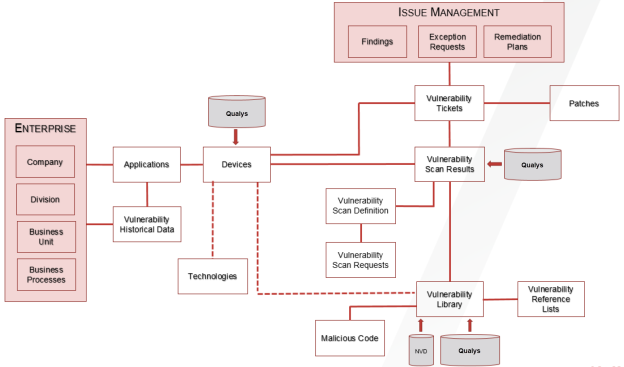
Installation and configuration
This section provides instructions for configuring the Qualys VM data feeds in the Archer Platform. This document is not intended to suggest optimum installations or configurations.
It is assumed that the reader has both working knowledge of all products involved, and the ability to perform the tasks outlined in this section. Administrators should have access to the product documentation for all products to install the required components.
The Archer IT Security Vulnerability Program use case must be installed and working prior to the integration. Perform the necessary tests to confirm that this is true before proceeding.
Important: The Archer IT Security Vulnerability Program use case, Issues Management use case, and licensed applications from the Enterprise Catalog package must be installed and working prior to performing the integration. Perform the necessary tests to confirm that this is true prior to proceeding.
The integration described in this guide is being provided as a reference implementation for evaluation and testing purposes. It may or may not meet the needs and use cases for your organization. If additional customizations or enhancements are needed, it is recommended that customers contact Archer Professional Services for assistance.
System requirements
The following components are required for installation and operation of the Qualys Vulnerability Management data feeds for the IT Security Vulnerability Program use case. The applications listed in the details section of the table serve as the target applications for the data feeds.
|
Component |
Details |
|
Archer |
Archer 6.14 or later |
|
Prerequisite Applications (Archer IT Security Vulnerabilities Program) |
Vulnerability Scan Results |
Data feed configuration
Data feeds
The following data feeds are provided with this integration.
|
Data Feed |
Description |
|
Archer 6.14 Qualys VM Knowledge Base |
The Archer 6.14 Qualys VM Knowledge Base feed is a JavaScript Transporter feed that utilizes API calls to extract all exploitable vulnerabilities from a Qualys vulnerability database. Qualys data is imported and leveraged in the Vulnerability Library application. |
|
Archer 6.14 Qualys VM Hosts |
The Archer 6.14 Qualys VM Hosts feed is a JavaScript Transporter feed that utilizes API calls to extract all the asset inventory discovered based on a client’s scanner configuration and implementation. Qualys VM data is imported and leveraged in the Devices application. For data ingestion, Archer offers configurable settings that allow individual clients to define how to uniquely identify devices in their organization. |
|
Archer 6.14 Qualys VM Hosts Extracted From Detections |
The Archer 6.14 Qualys VM Hosts Extracted From Detections feed is a JavaScript Transporter feed that utilizes API calls to extract all the asset inventory from the hosts vulnerability detection data. Qualys VM data is imported and leveraged in the Devices application. For data ingestion, Archer offers configurable settings that allow individual clients to define how to uniquely identify devices in their organization. |
|
Archer 6.14 Qualys VM Detections |
The Archer 6.14 Qualys VM Detections feed is a JavaScript Transporter feed that utilizes API calls to extract a list of hosts with the hosts latest vulnerability data. For data ingestion, Archer offers configurable settings that allow individual clients to define how to uniquely identify vulnerability detections in their organization. For data ingestion, Archer offers configurable settings that allow individual clients to define how to uniquely identify devices in their organization. |
Important: You must install all package files before importing data feeds. Package files include the IT Security Vulnerabilities Program use case package, the Enterprise Catalog package, and the Issues Management prerequisite use case package. For more information, see the “Installing the Packages” section of the IT Security Vulnerabilities Program use case in the Archer Online Documentation.
Import and run the data feeds in the following order:
-
(Optional) NVD Data Feeds
Note: For information on setting up the NVD data feeds, see the NIST National Vulnerability Database (NVD) Data Feeds in the Archer Help Center.
-
Archer 6.14 Qualys VM Knowledge Base.dfx5
-
Archer 6.14 Qualys VM Hosts.dfx5
-
Archer 6.14 Qualys VM Hosts Extracted From Detections.dfx5
-
Archer 6.14 Qualys VM Detections.dfx5
Note: After setting up the data feeds, you can schedule the feeds to run when you want to. The Archer 6.14 Qualys VM feeds are designed in a way they can easily be decoupled and initiated on a more frequent schedule basis to fit your needs. For more information, see the Scheduling Data Feeds section.
Configure the JavaScript Transporter settings
Before you upload a JavaScript file, you must configure JavaScript Transporter settings in the Archer Control Panel.
-
On the General tab, go to the JavaScript Transporter section.
-
Open the Archer Control Panel.
-
Go to Instance Management and select All Instances.
-
Select the instance.
-
On the General tab, go to the JavaScript Transporter section.
-
-
Set the Max Memory Limit and the Script Timeout variable to align with the resources necessary to retrieve data. Most incremental feeds can probably be achieved with a Max Memory Limit of 3048 MB (3 GB) and a Script Timeout of 300 minutes (5 hours).
-
Require Signature is enabled by default on install and required for all Hosted clients.
-
In the Signing Certificate Thumbprints section, add a thumbprint for each digitally signed JavaScript file.
-
Double-click an empty cell in the Signing Certificate Thumbprints section.
-
Enter the digital thumbprint of the trusted certificate used to sign the JavaScript file.
-
Note: For information on how to obtain digital thumbprints, see Obtaining Digital Thumbprints.
Important: If you enable Require Signature and do not specify thumbprints, JavaScript files will not be accepted by the system.
-
On the toolbar, click Save.
Digital Thumbprints
When running JavaScript data feeds, you can set the system to only allow digitally signed JavaScript files from trusted sources for security considerations.
For a certificate to be trusted, all the certificates in the chain including the Root CA Certificate and Intermediate CA certificates must be trusted on both the Web Server and Services Server machines.
Archer Technologies LLC cert in the Trusted Root CA Store
Archer Technologies LLC certificate is not present on every machine’s root by default.
-
On the JavaScript file, Right-click and select Properties.
-
Click the Digital Signatures tab.
-
From the Signature List window, select Archer Technologies LLC.
-
Click the Details button.
-
Click View Certificate.
-
Click Install Certificate.
-
Select Local Machine and click Next.
-
Select Place all certificates in the following store and click Browse.
-
Select Trusted Root Certification Authorities and click OK.
-
Click Next.
-
Click Finish.
-
-
-
Upon successful import, click OK.
Obtaining a Certificate Thumbprint
-
On the Web Server and Services Server machines, open the Manage Computer Certificates program.
-
Launch certmgr from the Start menu.
-
Navigate to Certificates – Local Computer > Trusted Root Certification Authorities > Certificates.
-
-
Verify that the certificate is trusted.
-
Double click the Archer Technologies LLC certificate.
-
In the Certificate window, click the Certification Path tab.
-
Ensure that the Certificate Status windows displays the following message: This certificate is OK.
Note: If the Certificate Status windows displays something different, follow the on-screen instructions.
-
-
Obtain the trusted certificate thumbprint.
-
In the Certificate window, click the Details tab.
-
Scroll to, and select, the Thumbprint field.
-
The certificate's digital thumbprint appears in the window. Copy thumbprint.
Note: For information on adding digital thumbprints, see Step 4a of “Configure the JavaScript Transporter Settings” section of the document, regarding where thumbprint is relevant.
-
Set up the Archer 6.14 Qualys VM Knowledge Base Data Feed
We leverage the API (/api/2.0/fo/knowledge_base/vuln/?action=list) to obtain vulnerability data, such as the vulnerability description, threat, and impact. The feed initiates the request to download the vulnerabilities from Qualys’ Knowledge Base by targeting the Qualys platform where your account is located, along with the availability to pass additional API parameters.
Important: Before you upload a JavaScript file, configure JavaScript Transporter settings in the Archer Control Panel. For more information, see Configure the JavaScript Transporter Settings.
Important: Except for the optional parameters specified in this procedure, changes to the JavaScript Transporter configuration file can only be achieved in a hosted environment with a Professional Services engagement. For more information, contact your account representative.
Important: Due to high volume of Knowledge Base content, the data feed will retrieve the content for the last 10 years only. For the initial base load of data, the data feed should be executed with the last_modified_after parameter set to <LastRunTime> (default setting) and the Last Run Time at the Run Configuration setting should be blank. On subsequent data feed executions since the Last Run Time token will be populated by after the initial data feed execution, the data feed will update incremental content.
Due to inconsistent high volume of data, the data feed should be executed with the following parameter values.
-
requestsPerMin = 5 for Qualys Standard Level Subscription(default), 12 for Enterprise Level Subscription and 33 for premium level subscription.
-
last_modified_after = The default value is <LastRunTime> token. The first run of the data feed will be for initial data population as the token is empty. For subsequent runs, the data feed will take the Last Run Token value and update the incremental data. In case of specific requirements, provide the value of the required date in YYYY-MM-DD format.
-
last_modified_before= The default value of the parameter is Current Date. In case of specific requirements, provide the value of the required date in YYYY-MM-DD format.
-
daysToBeIncremented= The default value has been set to 45 days. The maximum value that can be set is 50 days.
-
The Max Memory Limit (MB) in the JavaScript Transporter settings of Archer Control Panel was increased to 2048 MB (default 1024 MB).
Please note that the data feed executed successfully during the testing with the above set of parameters. In case the script fails due to high volume of data, apply the following configurations and execute the data feed again.
-
Decrease the `daysToBeIncremented` parameter values.
-
Increase the Max Memory Limit (MB) in the JavaScript Transporter settings of Archer Control Panel
Important: No truncation_limit is available for Knowledge Base data. Ultimately without the availability of a truncation_limit, we are unable to fully leverage our output writer and therefore not able to write portions of the data to file. We are storing the entirety of the data in memory which requires a temporary increase in the Max Memory Limit in the Archer Control Panel. The data feed will pull data for the last 10 years only. This limit has been set due to high volume of data.
-
Go to the Manage Data Feeds page with the following steps:
-
From the menu bar, click the
 icon.
icon. -
Under Integration, click Data Feeds.
-
-
In the Manage Data Feeds section, click Import.
-
Locate and select the Archer 6.14 Qualys VM Knowledge Base.dfx5 file.
-
Click Open.
-
In the General Information section, in the Status field, select Active.
-
In the Additional Properties section, enable Optimize Calculations.
-
Click the Transport tab.
-
In the Transport Configuration section, complete the following:
-
Click Upload.
-
From the Upload JavaScript File dialog, click Add New.
-
Locate and select the signed-QualysAPI_V1_0_8.js file and click Open.
-
From the Upload JavaScript File dialog, click OK.
-
-
In the Custom Parameters section, enter key values.
The following table describes the value to enter for each key in Custom Parameters.
|
Key |
Value |
Description |
|
dataSource |
kb |
|
|
kbUrl |
https://<Insert platform API Server> |
Note: For a complete list of supported parameters for this URL call and their explanations, see the Qualys API 2.0 Reference Guide (https://www.qualys.com/docs/qualys-api-vmpc-user-guide.pdf). For initial data loads, Archer recommends using parameters that chunk the data into consumable sizes to avoid memory constraint failures. LastRunTime is a token captured in by Archer in the data feed execution.
A lastRunTimeOffset of -1 is added to the LastRunTime date in the form of days. |
|
username |
Requires valid value. Default = [empty] |
|
|
password |
Requires valid value. Default = [empty] |
|
|
requestsPerMin |
Requires valid value. Default=60 |
Please follow the Qualys API Limits document for determining the API limits for your Qualys Service. https://cdn2.qualys.com/docs/qualys-api-limits.pdf Standard API Service: 300 calls per hours/ 5 calls per minute Enterprise API Service: 750 calls per Hour/12 calls per minute Premium API Service: 2000 calls per Hour/ 33 calls per minute Note: The API limit of the data feed by default has been set to 5. Please check your Qualys Service Level before setting the value. This field should not be left blank.
|
|
last_modified_after |
Optional Default= Current Date-10 years Format= YYYY-MM-DD |
This parameter has been set to <LastRunTime> by default. For the first run of the data feed, as the LastRunTime token is empty this parameter will be set to Current Day-10 years. For the subsequent data feed runs, the field will take the <LastRunTime> token and update the incremental data. |
|
last_modified_before |
Optional Default = Current Date Format=YYYY-MM-DD |
The parameter if blank will be set to current date. |
|
daysToBeIncremented |
Requires valid value. Default =50 |
The default value for the Data Feed has been set to 45 days. Due to the high volume of data, the parameter if required can be decreased. |
Important: The keys and values are case-sensitive and cannot include extra spaces at the end of the strings.
Note: The listed values are in place by default. They can be configured to suit your environment.
10. The following additional parameters are valid options for the Custom Parameters section for the current JavaScript file.
|
Key |
Value |
Description |
|
requestsPerMin |
Default = 60 [Configurable value] |
A parameter to allow clients to govern the number of API requests made by Archer to the external integration. Qualys Cloud Platform enforces limits on the API calls subscription users can make. The limits apply to the use of all APIs, except “session” API (session login/logout). |
|
socketLimit |
Default = 10 [Configurable value of 1-25] |
Indicates the maximum number of open socket channels to an endpoint to be used for TCP connections. |
|
maxRetry |
Default = 1 [Configurable value of 0-2] |
Indicates the number of times a retry will occur where an "ECONNRESET" error is encountered. If a retry is unsuccessful and the maxRetry is exceeded, the data feed will fail. |
|
proxy |
Optional Default = [empty] |
|
|
verifyCerts |
Default = False [Configurable value of True / False] |
Validates the website address matches the address on the certificate, like browser level validation. |
11. For each key type, determine whether you want it to be Protected or Plain Text. Selecting Protected encrypts the key value for the specified key in the log.
12. Click the Source Definition tab.
-
Click the Tokens sub-tab.
-
Verify token values.
The following table describes token values to verify.
|
Token |
Value |
|
LastRunTime |
(Populated by feed) |
Note: For more information about tokens, see "Data Feed Tokens" in the Archer Online Documentation.
13. Verify that key field values are not missing from the data feed setup window.
14. Click Save.
15. Navigate to the Data Map tab and verify the following mapping between source and targe fields.
|
Source Fields |
Target Fields |
|
SOURCE |
Source |
|
QID |
ID |
|
DFM_Key |
DFMKey |
|
VULN_TYPE |
Qualys Vuln Type |
|
SEVERITY_LEVEL |
Qualys Severity level |
|
TITLE |
Description Title |
|
CATEGORY |
Qualys Category |
|
DETECTION_INFO |
Detection Information |
|
LAST_CUSTOMIZATION/DATE |
Qualys Last Customization Date |
|
LAST_CUSTOMIZATION/LOGIN |
Qualys Last Customization Login |
|
LAST_SERVICE_MODIFICATION_DATETIME |
Qualys Last Service Modified Date |
|
PUBLISHED_DATETIME |
Qualys Published Date Vulnerability Published Date |
|
PATCHABLE |
Qualys Patchable/Values List Value |
|
SOFTWARE_LISTS/SOFTWARE_LIST/SOFTWARE |
Qualys Software List |
|
DIAGNOSIS |
Qualys Diagnosis |
|
DIAGNOSIS_COMMENT |
Qualys Diagnosis Comment |
|
CONSEQUENCE |
Qualys Consequence |
|
CONSEQUENCE_COMMENT |
Qualys Consequence Comment |
|
SOLUTION |
Solution |
|
SOLUTION_COMMENT |
Solution Comment |
|
CVE_LIST/CVE/ID |
Related CVEs Related CVEs/ID |
|
REFERENCE_LISTS/REFERENCE_LIST/DFM_Key |
Vulnerability Reference Lists/DFMKey |
|
REFERENCE_LISTS/REFERENCE_LIST/REF |
Vulnerability Reference Lists/CVE |
|
REFERENCE_LISTS/REFERENCE_LIST/DESC |
Vulnerability Reference Lists/Exploit Description |
|
REFERENCE_LISTS/REFERENCE_LIST |
Vulnerability Reference Lists/ID |
|
REFERENCE_LISTS/REFERENCE_LIST |
Vulnerability Reference Lists/URL |
|
REFERENCE_LISTS/REFERENCE_LIST |
Vulnerability Reference Lists/Exploit Source Name |
|
REFERENCE_LISTS/REFERENCE_LIST |
Vulnerability Reference Lists/Type/Values List Value |
|
MALWARE/MW_INFO/DFM_Key |
Associated Malware/DFMKey |
|
MALWARE/MW_INFO/MW_ID |
Associated Malware/Malcode Name Associated Malware/Title |
|
MALWARE/MW_INFO/MW_TYPE |
Associated Malware/Malcode Type |
|
MALWARE/MW_INFO/MW_PLATFORM |
Associated Malware/Affected Platforms |
|
MALWARE/MW_INFO/MW_ALIAS |
Associated Malware/Aliases |
|
MALWARE/MW_INFO/MW_RATING |
Associated Malware/Severity |
|
MALWARE/MW_INFO/MW_LINK |
Associated Malware/URL |
|
MALWARE/MW_INFO/SRC_NAME |
Associated Malware/Source |
|
CVSS-BASE/BASE |
Qualys CVSS v2 Base Score |
|
CVSS-TEMPORAL |
Qualys CVSS v2 Temporal Score |
|
CVSS-VECTOR_STRING |
Qualys CVSS v2 Vector String |
|
CVSS-ACCESS-VECTOR |
Qualys CVSS v2 Access Vector |
|
CVSS-ACCESS-COMPLEXITY |
Qualys CVSS v2 Access Complexity |
|
CVSS-IMPACT-CONFIDENTIALITY |
Qualys CVSS v2 Confidentiality |
|
CVSS-IMPACT-INTEGRITY |
Qualys CVSS v2 Integrity |
|
CVSS-IMPACT-AVAILABILITY |
Qualys CVSS v2 Availability |
|
CVSS-AUTHENTICATION |
Qualys CVSS v2 Authentication |
|
CVSS-EXPLOITABILITY |
Qualys CVSS v2 Exploitability |
|
CVSS-REMEDIATION_LEVEL |
Qualys CVSS v2 Remediation Level |
|
CVSS-REPORT_CONFIDENCE |
Qualys CVSS v2 Report Confidence |
|
CVSS_V3-BASE/BASE |
Qualys CVSS v3 Base Score |
|
CVSS_V3-TEMPORAL |
Qualys CVSS v3 Temporal Score |
|
CVSS_V3-VECTOR_STRING |
Qualys CVSS v3 Vector String |
|
CVSS_V3-ATTACK-VECTOR |
Qualys CVSS v3 Attack Vector |
|
CVSS_V3-ATTACK-COMPLEXITY |
Qualys CVSS v3 Attack Complexity |
|
CVSS_V3-IMPACT-CONFIDENTIALITY |
Qualys CVSS v3 Confidentiality |
|
CVSS_V3-IMPACT-INTEGRITY |
Qualys CVSS v3 Integrity |
|
CVSS_V3-IMPACT-AVAILABILITY |
Qualys CVSS v3 Availability |
|
CVSS_V3-PRIVILEGES_REQUIRED |
Qualys CVSS v3 Privileges Required |
|
CVSS_V3-USER_INTERACTION |
Qualys CVSS v3 User Interaction |
|
CVSS_V3-SCOPE |
Qualys CVSS v3 Scope |
|
CVSS_V3-EXPLOIT_CODE_MATURITY |
Qualys CVSS v3 Exploit Code Maturity |
|
CVSS_V3-REMEDIATION_LEVEL |
Qualys CVSS v3 Remediation Level |
|
CVSS_V3-REPORT_CONFIDENCE |
Qualys CVSS v3 Report Confidence |
|
PCI_FLAG |
PCI Flag |
|
ALL_PCI_REASONS/PCI_REASONS/PCI_REASON |
PCI Details PCI Details/PCI Details |
|
ALL_PCI_REASONS/PCI_REASONS/LAST_SERVICE_MODIFICATION_DATETIME |
PCI Details/Modified Date |
|
DISCOVERY-REMOTE |
Qualys Discovery Remote |
|
DISCOVERY-AUTH_TYPE_LISTS/DISCOVERY-AUTH_TYPE_LIST/DISCOVERY-AUTH_TYPE_LIST-AUTH_TYPE |
Qualys Discovery Authentication Type |
|
DISCOVERY-ADDITIONAL_INFO |
Qualys Discover Additional Info |
|
IS_DISABLED |
Qualys KB Disabled? |
Set Up the Archer 6.14 Qualys VM Hosts Data Feed
We leverage the API (/api/2.0/fo/asset/host/?action=list) to obtain a list of scanned hosts in the user’s account. The feed initiates the request to download the hosts by targeting the Qualys platform where your account is located, along with the availability to pass additional API parameters.
Important: Before you upload a JavaScript file, configure JavaScript Transporter settings in the Archer Control Panel. For more information, see Configure the JavaScript Transporter Settings.
Important: With the exception of the optional parameters specified in this procedure, changes to the JavaScript Transporter configuration file can only be achieved in a hosted environment with a Professional Services engagement. For more information, contact your account representative.
Important: Archer implements with a unique key on DNS identification. However, we understand that environment configurations are unique across an organization’s infrastructure, therefore the unique key to identify if a Device already exists inside Archer, is configurable to each client. And where clients have multiple scanners scanning the same set of devices or IP ranges, the unique key should be altered to a matching algorithm that identifies the device, regardless of the source.
-
Go to the Manage Data Feeds page with the following steps:
-
From the menu bar, click the
icon. -
Under Integration, click Data Feeds.
-
-
In the Manage Data Feeds section, click Import.
-
Locate and select the Archer 6.14 Qualys VM Hosts.dfx5 file for the data feed.
-
Click Open.
-
In the General Information section, in the Status field, select Active.
-
In the Additional Properties section, enable Optimize Calculations.
-
Click the Transport tab.
-
In the Transport Configuration section, complete the following:
-
Click Upload.
-
From the Upload JavaScript File dialog, click Add New.
-
Locate and select the Signed-QualysAPI_V1_0_8.1.js file, and click Open.
-
From the Upload JavaScript File dialog, click OK.
-
-
In the Custom Parameters section, enter key values.
The following table describes the value to enter for each key in Custom Parameters.
|
Key |
Value |
Description |
|
dataSource |
hosts |
|
|
hostsUrl |
https://<Insert platform API Server> /api/2.0/fo/asset/host/?action=list&details=All |
Note: For a complete list of supported parameters for this URL call and their explanations, see the Qualys API 2.0 Reference Guide (https://www.qualys.com/docs/qualys-api-vmpc-user-guide.pdf). LastRunTime is a token captured in by Archer in the data feed execution.
|
|
username |
Requires valid value Default = [empty] |
|
|
password |
Requires valid value Default = [empty] |
|
Important: The keys and values are case-sensitive, and cannot include extra spaces at the end of the strings.
Note: The listed values are in place by default. They can be configured to suit your environment.
-
(Optional) The following additional parameters are valid options for the Custom Parameters section for the current JavaScript file.
|
Key |
Value |
Description |
|
batchSize |
Default = 500 (records at a time) [Configurable] |
Truncation_limit is a supported parameter to specify a maximum number of hosts records to process in a single call. JavaScript makes incremental calls to pull the next batch of data. If the requested list identifies more host records than the truncation limit, then the XML output includes the element and the URL for making another request for the next batch of host records. |
|
requestsPerMin |
Default = 60 [Configurable value] |
A parameter to allow clients to govern the number of API requests made by Archer to the external integration. Qualys Cloud Platform enforces limits on the API calls subscription users can make. The limits apply to the use of all APIs, except “session” API (session login/logout). |
|
socketLimit |
Default = 10 [Configurable value of 1-25] |
Indicates the maximum number of open socket channels to an endpoint to be used for TCP connections. |
|
maxRetry |
Default = 1 [Configurable value of 0-2] |
Indicates the amount of times a retry will occur where an "ECONNRESET" error is encountered. If a retry is unsuccessful and the maxRetry is exceeded, the data feed will fail. |
|
proxy |
Optional Default = [empty] |
|
|
verifyCerts |
Default = False [Configurable value of True / False] |
Validates the website address matches the address on the certificate, similar to browser level validation. |
-
For each key type, determine whether you want it to be Protected or Plain Text. Selecting Protected encrypts the key value for the specified key in the log.
-
Click the Source Definition tab.
-
Click the Tokens sub-tab.
-
Verify token values.
-
The following table describes token values to verify.
|
Token |
Value |
|
LastRunTime |
(Populated by feed) |
Note: For more information about tokens, see "Data Feed Tokens" in the Archer Online Documentation.
-
Verify that key field values are not missing from the data feed setup window.
-
Click Save.
-
Navigate to the Data Map tab and verify the following mapping between source and targe fields.
|
Source Fields |
Target Fields |
|
DFMKey |
Device Unique Key |
|
DEVICE_NAME |
Device Name |
|
Source |
Last Updated By |
|
DeviceScanned |
Device Scanned Flag |
|
ID |
Qualys Device ID |
|
IP |
Internal IPv4 Address |
|
TRACKING_METHOD |
Qualys Tracking Method |
|
NETWORK_ID |
Qualys Network ID |
|
DNS |
Primary DNS Server Name |
|
EC2_INSTANCE_ID |
EC2 Instance ID |
|
NETBIOS |
Network Name |
|
OS |
Operating System |
|
QG_HOSTID |
QualysGuard HostID |
|
TAGS/TAG/TAG_ID |
Tags(Sub-Form) Tags/Tag ID |
|
TAGS/TAG/TAG_TITLE |
Tags/Name |
|
METADATA/ATTRIBUTE/DFMKey |
EC2 Attributes(SubForm) EC2 Attributes/DFMKey |
|
METADATA/ATTRIBUTE/TYPE |
EC2 Attributes/Type |
|
METADATA/ATTRIBUTE/NAME |
EC2 Attributes/Name |
|
METADATA/ATTRIBUTE/LAST_STATUS |
EC2 Attributes/Last Status |
|
METADATA/ATTRIBUTE/VALUE |
EC2 Attributes/Value |
|
METADATA/ATTRIBUTE/LAST_SUCCESS_DATE |
EC2 Attributes/Last Success Date |
|
METADATA/ATTRIBUTE/LAST_ERROR_DATE |
EC2 Attributes/Last Error Date |
|
METADATA/ATTRIBUTE/LAST_ERROR |
EC2 Attributes/Last Error |
|
LAST_VULN_SCAN_DATETIME |
Last Scan Date Time |
|
LAST_VM_SCANNED_DATE |
Last Vulnerability Unauthenticated Scanned Date Time |
|
LAST_VM_SCANNED_DURATION |
Last Vulnerability Unauthenticated Scanned Duration |
|
LAST_VM_AUTH_SCANNED_DATE |
Last Vulnerability Authenticated Scanned Date Time |
|
LAST_VM_AUTH_SCANNED_DURATION |
Last Vulnerability Authenticated Scanned Duration |
|
LAST_COMPLIANCE_SCAN_DATETIME |
Last Compliance Scan Date Time |
|
ASSET_GROUPS/ASSET_GROUP/ASSET_GROUP_NAME |
Asset Group(s) |
|
OWNER |
Qualys Device Owner |
|
COMMENTS |
Comments |
Set up the Archer 6.14 Qualys VM Hosts Extracted From Detections Data Feed
Archer leverages the API (/api/2.0/fo/asset/host/vm/detection/) to obtain a list of hosts with the hosts latest vulnerability data, based on the host based scan data available in the user’s account. From this data, we specifically capture additional information regarding hosts identified as part of the vulnerability data extraction. The feed initiates the request to download the host detection data by targeting the Qualys platform where your account is located, along with the availability to pass additional API parameters.
Important: Before you upload a JavaScript file, configure JavaScript Transporter settings in the Archer Control Panel. For more information, see Configure the JavaScript Transporter Settings.
Important: With the exception of the optional parameters specified in this procedure, changes to the JavaScript Transporter configuration file can only be achieved in a hosted environment with a Professional Services engagement. For more information, contact your account representative.
Important: Archer implements with a unique key on DNS identification. However, we understand that environment configurations are unique across an organization’s infrastructure, therefore the unique key to identify if a Device already exists inside Archer, is configurable to each client. And where clients have multiple scanners scanning the same set of devices or IP ranges, the unique key should be altered to a matching algorithm that identifies the device, regardless of the source.
-
Go to the Manage Data Feeds page with the following steps:
-
From the menu bar, click the
icon. -
Under Integration, click Data Feeds.
-
-
In the Manage Data Feeds section, click Import.
-
Locate and select the Archer 6.14 Qualys VM Hosts Extracted From Detections.dfx5 file for the data feed.
-
Click Open.
-
In the General Information section, in the Status field, select Active.
-
In the Additional Properties section, enable Optimize Calculations.
-
Click the Transport tab.
-
In the Transport Configuration section, complete the following:
-
Click Upload.
-
From the Upload JavaScript File dialog, click Add New.
-
Locate and select the Signed-QualysAPI_V1_0_8.1.js file and click Open.
-
From the Upload JavaScript File dialog, click OK.
-
-
In the Custom Parameters section, enter key values.
The following table describes the value to enter for each key in Custom Parameters.
|
Key |
Value |
Description |
|
dataSource |
hostDetections |
|
|
detectionUrl |
https://<platform API server>/api/2.0/fo/asset/host/vm/detection/ |
Note: For a complete list of supported parameters for this URL call and their explanations, see the Qualys API 2.0 Reference Guide https://www.qualys.com/docs/qualys-api-vmpc-user-guide.pdf). If the status parameter is not passed to the API, by default, the output only contains detections with New, Active, or Re-Opened. LastRunTime is a token captured in by Archer in the data feed execution.
|
|
username |
Requires valid value Default = [empty] |
|
|
password |
Requires valid value Default = [empty] |
|
Important: The keys and values are case-sensitive, and cannot include extra spaces at the end of the strings.
Note: The listed values are in place by default. They can be configured to suit your environment.
-
(Optional) The following additional parameters are valid options for the Custom Parameters section for the current JavaScript file.
|
Key |
Value |
Description |
|
batchSize |
Default = 500 (records at a time) [Configurable] |
Truncation_limit is a supported parameter to specify a maximum number of hosts records to process in a single call. JavaScript makes incremental calls to pull the next batch of data. If the requested list identifies more host records than the truncation limit, then the XML output includes the element and the URL for making another request for the next batch of host records. |
|
requestsPerMin |
Default = 60 [Configurable value] |
A parameter to allow clients to govern the number of API requests made by Archer to the external integration. Qualys Cloud Platform enforces limits on the API calls subscription users can make. The limits apply to the use of all APIs, except “session” API (session login/logout). |
|
socketLimit |
Default = 10 [Configurable value of 1-25] |
Indicates the maximum number of open socket channels to an endpoint to be used for TCP connections. |
|
maxRetry |
Default = 1 [Configurable value of 0-2] |
Indicates the number of times a retry will occur where an "ECONNRESET" error is encountered. If a retry is unsuccessful and the maxRetry is exceeded, the data feed will fail. |
|
proxy |
Optional Default = [empty] |
|
|
verifyCerts |
Default = False [Configurable value of True / False] |
Validates the website address matches the address on the certificate, similar to browser level validation. |
-
For each key type, determine whether you want it to be Protected or Plain Text. Selecting Protected encrypts the key value for the specified key in the log.
-
Click the Source Definition tab.
-
Click the Tokens sub-tab.
-
Verify token values.
-
The following table describes token values to verify.
|
Token |
Value |
|
LastRunTime |
(Populated by feed) |
Note: For more information about tokens, see "Data Feed Tokens" in the Archer Help.
-
Verify that key field values are not missing from the data feed setup window.
-
Click Save.
-
Navigate to the Data Map tab and verify the following mapping between source and target fields.
|
Source Fields |
Target Fields |
|
DFMKey |
Device Unique Key |
|
DEVICE_NAME |
Device Name |
|
Source |
Last Updated By |
|
DeviceScanned |
Device Scanned Flag |
|
ID |
Qualys Device ID |
|
IP |
Internal IPv4 Address |
|
TRACKING_METHOD |
Qualys Tracking Method |
|
NETWORK_ID |
Qualys Network ID |
|
OS |
Operating System |
|
CPE_Technologies/CPE_Technology/CPE_Operating_System_Technology |
Operating System Technologies |
|
EC2_INSTANCE_ID |
EC2 Instance ID |
|
NETBIOS |
Network Name |
|
QG_HOSTID |
QualysGuard HostID |
|
LAST_SCAN_DATETIME |
Last Scan Date Time |
|
LAST_VM_SCANNED_DATE |
Last Vulnerability Unauthenticated Scanned Date Time |
|
LAST_VM_SCANNED_DURATION |
Last Vulnerability Unauthenticated Scanned Duration |
|
LAST_VM_AUTH_SCANNED_DATE |
Last Vulnerability Authenticated Scanned Date Time |
|
LAST_VM_AUTH_SCANNED_DURATION |
Last Vulnerability Authenticated Scanned Duration |
|
LAST_PC_SCANNED_DATE |
Last PC Scanned Date Time |
|
TAGS/TAG/TAG_ID |
Tags(Subform) |
|
TAGS/TAG/TAG_TITLE |
Tags/Tag ID |
|
TAGS/TAG/COLOR |
Tags/Name |
|
TAGS/TAG/ BACKGROUND_COLOR |
Tags/Color |
|
METADATA/ATTRIBUTE/DFMKey |
Tags/Background Color |
|
METADATA/ATTRIBUTE/TYPE |
EC2 Attributes(SubForm) |
|
METADATA/ATTRIBUTE/NAME |
EC2 Attributes/DFMKey |
|
METADATA/ATTRIBUTE/LAST_STATUS |
EC2 Attributes/Type |
|
METADATA/ATTRIBUTE/VALUE |
EC2 Attributes/Name |
|
METADATA/ATTRIBUTE/LAST_SUCCESS_DATE |
EC2 Attributes/Last Status |
|
METADATA/ATTRIBUTE/LAST_ERROR_DATE |
EC2 Attributes/Value |
|
METADATA/ATTRIBUTE/LAST_ERROR |
EC2 Attributes/Last Success Date |
Set Up the Archer 6.14 Qualys VM Detections Data Feed
We leverage the API (/api/2.0/fo/asset/host/vm/detection/) which provides a list of hosts with each hosts latest vulnerability data, based on the host-based scan data available in the user’s account. Vulnerability detection data includes the latest complete vulnerability status for the hosts (New, Active, Fixed, Re-Opened) and the history information. The feed initiates the request to download the host detection data by targeting the Qualys platform where your account is located, along with the availability to pass additional API parameters.
Important: Before you upload a JavaScript file, configure JavaScript Transporter settings in the Archer Control Panel. For more information, see Configure the JavaScript Transporter Settings.
Important: With the exception of the optional parameters specified in this procedure, changes to the JavaScript Transporter configuration file can only be achieved in a hosted environment with a Professional Services engagement. For more information, contact your account representative.
For detections, Archer implements with a unique key concept to associate the detection to a host and a vulnerability definition. However, we understand that environment configurations are unique across an organization’s infrastructure, therefore the unique keys are configurable to each client, such as determining if a device already exists in your Archer environment. And where clients have multiple scanners scanning the same set of devices or IP ranges, the unique key should be altered to a matching algorithm that identifies the device, regardless of the source. Unique key default values are as follows:
|
Identification of an object |
Logic (configurable) |
|
Detection |
If DNS exists, concatenate DNS + QID + Port + Protocol. If DNS does not exist, concatenate the Host ID + QID + Port + Protocol + First Found. |
|
Device (Link Only) |
If a Qualys Host ID exists, create a match from the detection to the device. Otherwise, use the DNS as the match on an active Device. Assumption: Qualys Host ID is only captured on a device record after initial host ingestion. When defining the host infrastructure, we do not assume Qualys Host ID is a unique identifier by itself. |
|
Vulnerability Library definition (Link Only) |
If a QID exists, create a match from the detection to the vulnerability definition. |
-
Go to the Manage Data Feeds page with the following steps:
-
From the menu bar, click the
icon. -
Under Integration, click Data Feeds.
-
-
In the Manage Data Feeds section, click Import.
-
Locate and select the Archer 6.14 Qualys VM Detections.dfx5 file for the data feed.
-
Click Open.
-
In the General Information section, in the Status field, select Active.
-
In the Additional Properties section, enable Optimize Calculations.
-
Click the Transport tab.
-
In the Transport Configuration section, complete the following:
-
Click Upload.
-
From the Upload JavaScript File dialog, click Add New.
-
Locate and select the Signed-QualysAPI_V1_0_8.1.js file and click Open.
-
From the Upload JavaScript File dialog, click OK.
-
-
In the Custom Parameters section, enter key values.
The following table describes the value to enter for each key in Custom Parameters.
|
Key |
Value |
Description |
|
dataSource |
detections |
|
|
detectionUrl |
https://<platform API server>/api/2.0/fo/asset/host/vm/detection/ |
Note: For a complete list of supported parameters for this URL call and their explanations, see the Qualys API 2.0 Reference Guide https://www.qualys.com/docs/qualys-api-vmpc-user-guide.pdf). If the status parameter is not passed to the API, by default, the output only contains detections with New, Active, or Re-Opened. LastRunTime is a token captured in by Archer in the data feed execution.
A lastRunTimeOffset of -1 is added to the LastRunTime date in the form of days. |
|
username |
Requires valid value Default = [empty] |
|
|
password |
Requires valid value Default = [empty] |
|
Important: The keys and values are case-sensitive and cannot include extra spaces at the end of the strings.
Note: The listed values are in place by default. They can be configured to suit your environment.
-
(Optional) The following additional parameters are valid options for the Custom Parameters section for the current JavaScript file.
|
Key |
Value |
Description |
|
batchSize |
Default = 500 (records at a time) [Configurable] |
Truncation_limit is a supported parameter to specify a maximum number of hosts records to process in a single call. JavaScript makes incremental calls to pull the next batch of data. If the requested list identifies more host records than the truncation limit, then the XML output includes the element and the URL for making another request for the next batch of host records. |
|
requestsPerMin |
Default = 60 [Configurable value] |
A parameter to allow clients to govern the number of API requests made by Archer to the external integration. Qualys Cloud Platform enforces limits on the API calls subscription users can make. The limits apply to the use of all APIs, except “session” API (session login/logout). |
|
socketLimit |
Default = 10 [Configurable value of 1-25] |
Indicates the maximum number of open socket channels to an endpoint to be used for TCP connections. |
|
maxRetry |
Default = 1 [Configurable value of 0-2] |
Indicates the amount of times a retry will occur where an "ECONNRESET" error is encountered. If a retry is unsuccessful and the maxRetry is exceeded, the data feed will fail. |
|
proxy |
Optional Default = [empty] |
|
|
verifyCerts |
Default = False [Configurable value of True / False] |
Validates the website address matches the address on the certificate, similar to browser level validation. |
-
For each key type, determine whether you want it to be Protected or Plain Text. Selecting Protected encrypts the key value for the specified key in the log.
-
Click the Source Definition tab.
-
Click the Tokens sub-tab.
-
Verify token values.
-
The following table describes token values to verify.
|
Token |
Value |
|
LastRunTime |
(Populated by feed) |
|
CrossReferencesMode |
LinkOnly |
|
RelatedReferencesMode |
LinkOnly |
Note: For more information about tokens, see "Data Feed Tokens" in the Archer Help.
-
Verify that key field values are not missing from the data feed setup window.
-
Click Save.
-
Navigate to the Data Map tab and verify the following mapping between source and targe fields.
|
Source Fields |
Target Fields |
|
Device_DFMKey |
Impacted Device/Device Unique Key |
|
DFMKey |
DFMKey |
|
TITLE |
Title |
|
Source |
Source |
|
ID |
Hosts/ID /Impacted Device/Qualys Device ID |
|
IP |
IPv4 |
|
IPV6 |
IPv6 |
|
TRACKING_METHOD |
Tracking Method |
|
NETWORK_ID |
Network ID |
|
OS |
Operating System |
|
OS_CPE |
CPE v2.2 |
|
CPE_Technologies/CPE_Technology/CPE_Operating_System_Technology |
CPE Operating System Technology |
|
DNS |
Primary DNS Server Name |
|
EC2_INSTANCE_ID |
EC2 Instance ID |
|
NETBIOS |
NetBIOS Name |
|
QG_HOSTID |
QG Host ID |
|
LAST_SCAN_DATETIME |
Last Device Scan Date |
|
LAST_VM_SCANNED_DATE |
Last VM Scanned_Date |
|
LAST_VM_SCANNED_DURATION |
Last VM Scanned Duration |
|
LAST_VM_AUTH_SCANNED_DATE |
Last VM Auth Scanned Date |
|
LAST_VM_AUTH_SCANNED_DURATION |
Last VM Auth Scanned Duration |
|
LAST_PC_SCANNED_DATE |
Last PC Scanned Date |
|
/TAGS/TAG/TAG_ID |
Tag Information(Sub-Form) Tag Information/Tag ID |
|
/TAGS/TAG/TAG_TITLE
|
Tag Information/Name |
|
/TAGS/TAG /COLOR
|
Tag Information/Color/ |
|
/TAGS/TAG /BACKGROUND_COLOR
|
Tag Information/Background Color/ |
|
METADATA/ATTRIBUTE/DFMKey |
EC2 Attributes/DFMKey |
|
METADATA/ATTRIBUTE/TYPE |
EC2 Attributes/Type |
|
METADATA/ATTRIBUTE/NAME |
EC2 Attributes/Name |
|
METADATA/ATTRIBUTE/LAST_STATUS |
EC2 Attributes/Last Status |
|
METADATA/ATTRIBUTE/VALUE |
EC2 Attributes/Value |
|
METADATA/ATTRIBUTE/LAST_SUCCESS_DATE |
EC2 Attributes/Last Success Date |
|
METADATA/ATTRIBUTE/LAST_ERROR_DATE |
EC2 Attributes/Last Error Date |
|
METADATA/ATTRIBUTE/LAST_ERROR |
EC2 Attributes/Last Error |
|
VulnerabilityLibrary_Key
|
Vulnerability Library Details Vulnerability Library Details/DFMKey |
|
QID |
QID |
|
TYPE |
Vulnerability Type |
|
SEVERITY |
Qualys Severity |
|
PORT |
Port Number |
|
PROTOCOL |
Protocol |
|
FQDN |
FQDN |
|
SSL_CONVERSION/SSL |
Detected Over SSL |
|
INSTANCE |
Instance |
|
RESULTS |
Results |
|
STATUS |
Qualys Status |
|
FIRST_FOUND_DATETIME |
First Found Date |
|
LAST_FOUND_DATETIME |
Last Found Date |
|
TIMES_FOUND |
Number of Times Found Reported by Scanner |
|
LAST_TEST_DATETIME |
Last Test Date |
|
LAST_UPDATE_DATETIME |
Last Date Updated |
|
LAST_FIXED_DATETIME |
Last Verified Fixed Date |
|
FIRST_REOPENED_DATETIME |
First Reopened Date |
|
LAST_REOPENED_DATETIME |
Last Reopened Date |
|
TIMES_REOPENED |
Number of Times Reopened Reported by Scanner |
|
SERVICE |
Service |
|
IS_IGNORED |
Is Ignored? |
|
IS_DISABLED |
Is Disabled? |
|
AFFECT_RUNNING_KERNEL |
Affect Running Kernel |
|
AFFECT_RUNNING_SERVICE |
Affect Running Service |
|
AFFECT_EXPLOITABLE_CONFIG |
Affect Exploitable Configuration |
|
LAST_PROCESSED_DATETIME |
Last Processed Date |
Using the Qualys Vulnerability Management Data Feeds
Scheduling Data Feeds
Important: A data feed must be active and valid to successfully run.
As you schedule your data feed, the Data Feed Manager validates the information. If any information is invalid, an error message displays. You can save the data feed and correct the errors later, but the data feed does not process until you make corrections.
Note: All IT Security Vulnerabilities Program data feeds are set to run daily by default.
-
From the menu bar, click the
icon. -
Go to the Schedule tab of the data feed that you want to modify.
-
From the menu bar, click the
icon. -
Under Integration, click Data Feeds.
-
Select the data feed.
-
Click the Schedule tab.
-
-
Go to the Recurrences section and complete frequency, start and stop times, and time zone.
The following table describes the fields in the Recurrences section.
|
Field |
Description |
|
Frequency |
Specifies the interval in which the data feed runs, for example, Minutely, Hourly, Daily, Weekly, Monthly, or Reference.
For example, if you specify 45 in the Every list, the data feed executes every 45 minutes.
A reference data feed will not run when immediately running a data feed. The Run Data Feed Now option only runs the current data feed. |
|
Every |
Specifies the interval of the frequency in which the data feed runs. |
|
Start Time |
Specifies the time the data feed starts running. |
|
Start Date |
Specifies the date on which the data feed schedule begins. |
|
Time Zone |
Specifies the time zone in of the server that runs the data feed. |
-
(Optional) To override the data feed schedule and immediately run your data feed, in the Run Data Feed Now section, click Start.
-
Click Save.
Certification environment
Date Tested: June 2024
|
Product Name |
Version Information |
Operating System |
|
Archer |
6.14 |
Virtual Appliance |
|
Qualys Vulnerability Management (VM) |
NA |
NA |