Archer User Account Management
Important: This offering is available for Archer on-premise clients only.
For Archer SaaS clients, System for Cross-Domain Identity Management (SCIM) is available. SCIM is an open standard protocol designed to simplify the management of user identities and resources across different systems and domains. With Archer’s SCIM integration you can automate the process of user provisioning from your IDP systems, enabling seamless syncing of user information to Archer.
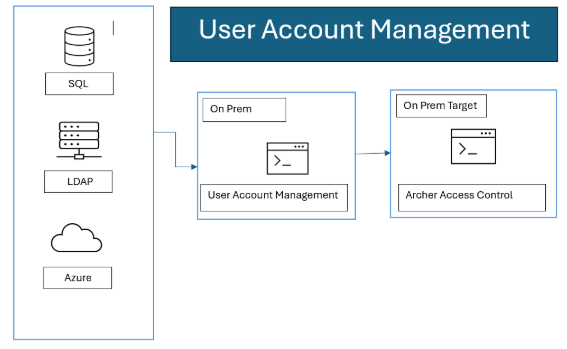
The Archer User Account Management Tool & Utility allows organizations to create or update users from multiple data sources automating the synchronization of user accounts between the Archer Platform and the user management data source. Instead of the Archer Platform reaching out for the user account changes, the Archer User Account Management Tool & Utility runs as a service on the client-server and pushes the user account changes to the Archer Platform.
The Archer User Account Management Tool & Utility supports the following user management data sources:
-
LDAP. Like the Archer native LDAP sync, users are created utilizing LDAP as a data source for user and group objects. Filter options are available to ensure that only the intended source users are brought into the product.
-
Azure. This is essentially LDAP SaaS provided by Microsoft. Proper credentials are required.
-
SQL. The tool can connect to the designated SQL database and pull values for user creation. The value ‘as’ indicators need to match the appropriate values for mapping the user.
Archer Exchange: With the Archer Exchange, the Archer team has created a broad selection of supplemental, value-added offerings to help you get your unique risk management program on the right path, right from the start. You can leverage the Archer Exchange offerings to expand the use of Archer solutions into new business processes and address specific industry, geographic, regulatory, or technical requirements.
On this page
Release notes
|
Document Version |
Published Date |
Notes |
|---|---|---|
| 2025.12 | March 2026 |
Bug Fix: Fixed an issue where group memberships could not be processed for external (guest) Azure users due to the #EXT# format in the User principal name
|
 Previous versions
|
Document Version |
Published Date |
Notes |
|---|---|---|
|
6.9.3 |
March 2022 |
Initial release on Archer Exchange |
|
6.12 |
April 2022 |
Updated documentation with notes regarding implementation in Archer SaaS environments |
|
6.12 |
February 2023 |
Updated documentation for the following updates:
|
|
2024.06 |
August 2024 |
Updated documentation for the following updates:
|
| 2024.09 | October 2024 | Bug Fix: Group syncing not working with AzureUserNameAttribute set to some other attribute than userPrincipalName |
| 2024.11 | January 2025 |
|
|
2024.11 |
August 2025 |
|
| 2024.11 | November 2025 |
|
| 2025.12 | February 2026 |
|
Known issues
|
Component |
Description |
|---|---|
|
Execution |
Regardless of the data source if RoleReplace flag is set to True below warning is displayed.RoleReplace flag only works for SQL data source and should be set to False for other datasources. Important: RoleReplace is not allowed for the configured data source ArcherModule. The setting will be ignored. |
|
dataSource |
For Source Type = SQL, Role Replace flag (Refer table in UAM Behaviour flags section) is not working. Roles are not replaced/appended. Warning is displayed if the role replace flag is true. |
Fixed issues
|
Component |
Description |
|
Execution |
There is a defect in how the tool is looking up domain-based user accounts. Users using an LDAP sync or even have an inactive LDAP connection for SSO purposes. It is using SOAP API for user ID lookup, but not passing a valid Domain Name, only ID, which the API doesn’t support. |
|
Execution |
Users were getting processed as Inactive for LDAP connector has been fixed. |
|
Performance |
Updated the API (REST via OData to SOAP) for user lookup in the tool & utility. |
|
Execution |
Pagination Support for Azure data source. |
|
Attributes |
‘Azure’ Data source: Email, Location, Title are importing and AzureGroupFilteris now working. |
|
Execution |
This error is no longer displayed. Source Instance Password attribute is applicable only for ArcherUsers data Source. But, an error message regarding Incorrect encrypted Source password being tested is displayed in the log (as shown below) regardless of Source type. This message can be ignored and doesn’t affect the tool functionality. Integration.archer.ArcherConnectedApplicationBase..ctor :: Error Decrypting Source Archer Password |
|
Execution |
If the config file doesn’t exist during execution, UAM now shows the right error message in log. Error locating UAM config file:C:\Users\Admin\Desktop\ArcherUAM\ArcherUserAccountManagementConsole.exe.config |
Overview
As organizations grow, employees with varying roles and responsibilities increasingly utilize enterprise solutions to perform their jobs. To maintain a secure environment for their users, administrators are required to provision user accounts for all the various solutions. With Archer, users require credentials and permissions to access the data they need to do their job. For Archer Administrators, this can become a cumbersome task provisioning Archer user account and granting the appropriate permissions and allowing users access to create and provision Archer accounts would be horrendous to manage and most likely go against corporate policies.
Archer administrators are tasked with the challenge of efficiently managing user accounts, ensuring appropriate permissions, and adhering to corporate policies. The following are the use cases for this tool:
-
Automate Deactivation of Non-Active Users: Users who are not active in Active Directory or are no longer with the organization can be scheduled for deactivation in Archer, thereby cleaning up unnecessary user profiles and freeing up allocated licenses
-
Automate Group Synchronization with Archer: Admins can regularly sync groups by automatically synchronizing user profiles from Active Directory with their assigned groups. For example, if a group is removed or a new group is added to a user profile, the tool will update these changes accordingly in Archer.
-
Automate User Creation in Archer: Create user profiles in Archer based on a configured schedule from Active Directory, allowing for advance creation of profiles when a new user joins the organization.
To meet this challenge, the Archer User Account Management Tool & Utility, formerly referred to as Remote User Management (RUM), offers a robust solution for Archer on-premises clients. This tool simplifies the process by automating the synchronization of user accounts across multiple data sources such as LDAP, Azure, and SQL. It operates seamlessly as a service on your client-server infrastructure, facilitating the automated propagation of user account changes to your Archer instance.
Features and benefits
With the Archer User Account Management Tool & Utility, you can do the following activities.
-
Specify user management data source and target Archer instance
-
Create, update, or delete user accounts in the Archer Platform for on-premise environments
-
Run on-demand or schedule frequency for updating the target Archer instance
-
Log Archer user account management changes
The Archer User Account Management Tool & Utility has the following benefits.
-
Synchronization of user accounts between user management data source and the Archer platform through automation or on-demand
-
Provide a means for non-Admins (with appropriate permissions) to provision Archer accounts
Prerequisites (system requirements)
|
Components |
Recommended software |
|---|---|
|
Archer requirements |
This offering has been validated on Archer Platform release 2025.12 |
|
Supported Archer environments |
|
|
Deployment requirements |
On-Premise implementations can deploy the application on the server that is hosting the Archer platform. |
|
Network requirements |
Archer User Account Management Tool & Utility should have network access to the Archer instance. |
|
Network service account |
A network service account which can connect to the source.
|
|
Archer API account |
A user in the Target and/or Source Archer instance(s) with sufficient permissions to read/make updates to Access Control. Note that there is no specific “API” user type. Merely assign a user with the correct permissions and name it appropriately. For example: UAM_API_User. |
|
Azure |
Supports Graph API 1.0. Validate your requirements for Azure API: https://docs.microsoft.com/en-us/azure/active-directory/develop/active-directory-graph-api |
| General requirements |
Very Small Single-Host Environment On-Premises Installations |
Architecture diagram
Installing Archer User Account Management Tool & Utility
The main components are:
-
ArcherUserAccountManagementConsole.exe.config – Configuration and setup.
-
ArcherUserAccountManagementConsole.exe – This is the actual executable.
-
Open the installer by double clicking on the .msi installer.
-
Click Next.
-
Click on I Agree and click on Nextin the license agreement page.
-
Select the destination where it should be installed and choose the installation for as per the need and click Next. The service account will also need write permissions to this folder. It must be installed where it references its files on a mapped drive. For example: C:\UAM, vs. a UNC path, e.g., \\server\UAM.
-
Click Next.
-
Once the installation is complete Close the wizard.
Upgrading Archer User Account Management Tool & Utility
Back up these files prior to upgrading:
-
NLog.config
-
ArcherUserAccountManagementConfig.exe.config
-
Open Control Panel by pressing Win+R. Write Control Panel. Click OK.
-
Open Uninstall a program
-
Select Archer User Account Management. Clickon Uninstall. Click on Yes.
-
Once the uninstall process is completed run the latest .msi and follow the steps to install the msi.
Configuring the Archer User Account Management Tool & Utility
This section provides instructions for configuring the Archer User Account Management Tool & Utility within the Archer Platform.
It is assumed that the reader has both working knowledge of all products involved, and the ability to perform the tasks outlined in this section. Administrators must have access to the documentation for all products in order to install the required components.
Important: The integration described in this guide is being provided as a reference implementation for evaluation and testing purposes. It may or may not meet the needs and use cases for your organization. If additional customizations or enhancements are needed, it is recommended that customers contact Archer Professional Services for assistance.
Implementation
Execution timeout
The timeout for access the Target instance is 5 minutes. This includes long running processes, network latency, and anything else that delays access to the Target Archer instance.
Archer activity impacts
Deletes are the most resource intensive activity. While it may appear the utility has stopped, there is an Archer job which runs with every deleted user. Deleting users will take more time than creates or updates.
Failure limits
If more errors than the MaxErrors configuration value occur (default: 20), the process will fail. This includes poorly formatted names, configuration settings which are not consistent with the desired operation, et al. Check the logs for details. If multiple failures are being encountered, increase the log level.
Logging
Nlog.config has the configuration settings for output logging. By default, the logs will record in the path noted above. The logging levels are Trace, Debug, Info, Warn, Error, Fatal. The lower the log level, the more information that is output. Execution performance will be appropriately affected. “Info” to file and “Warn” to colored_console will provide sufficient information to track the activities which were performed. Change the logging level depending on your performance/detail requirements.
The “Info” level of logging contains a summary of the actions performed.
Depending on the source and target record counts and logging level, there may appear to be long period of inactivity, especially when the level is set to “Info”. This is likely quite normal. If need be, set the logging to a lower level to view processing.
Execution frequency
Your organization will need to determine the frequency for updating the target Archer instance.
Use caution in the timing of execution. When it starts, it gathers a list of users in the target cache. Running multiple sessions simultaneously will affect the users who are returned in that cache possibly resulting in errors, collisions, duplication or unintended deletions.
On demand
You can run ArcherUserAccountManagementConsole and it will execute once without using any of the configured scheduling options. Simply run ArcherUserAccountManagementConsole -runonce from the command line.
Scheduling
Use the Windows Task Scheduler for execution timing. Each configuration will need a separate Task Scheduler task with the appropriate config file specified in the -configSource command line option.
Command line options
The implementation will be managed via the command line.
|
Command |
Description |
|---|---|
|
-encrypt |
Encrypts the requested string so that it can be used in the product's config file in areas that require an encrypted string The command is used as: ArcherUserAccountManagementConsole.exe -encrypt |
|
-runonce |
Runs the sync process once and then halts the process. This same option is the default run behavior when running the console without any command parameters. Without any other parameters, -runonce will use the default .config file, ArcherUserAccountManagementConsole.exe.config. -runonce may be used with -configSource to specific which .config file to use. For example: ArcherUserAccountManagementConsole.exe -runonce -configSourcetest.config |
|
-help |
Displays help regarding the command options available to the tool's console EXE.
|
|
-testsource |
Validates that the Source Archer environment is accessible. By itself, -testsource uses the source specified under SourceArcherBaseUrl in the default .config file, ArcherUserAccountManagementConsole.exe.config. When used with the -configSource option, the source in that specific file will be validated. For example: ArcherUserAccountManagementConsole.exe -configSourcetest.config -testsource |
|
-testtarget |
Validates that the Target environment is accessible. By itself, -testtarget uses the source specified under TargetArcherBaseUrl in the default .config file, ArcherUserAccountManagementConsole.exe.config. When used with the -configSource option, the target in that specific file will be validated. For example: ArcherUserAccountManagementConsole.exe -configSourcetest.config - testtarget |
|
-configSource |
This option allows the ability to specify a specific .config file. The default .config file, ArcherUserAccountManagementConsole.exe.config, will be used if no other is specified. Enclose the target .config file in quotes when using long filenames containing spaces. The command is used as: ArcherUserAccountManagementConsole.exe -configSourcetest.config It can be used with: -runonce -testtarget -testsource |
Configuration values: ArcherUserAccountManagementConsole.exe.config
Assume all values in all fields are required unless noted otherwise.
Encryption for passwords and SQLConnectionString is available.
Attribute mapping options and examples are detailed in Archer User Account Management Tool Attribute Mapping Referencefile. It can be found in the documentation folder of the Archer User Account Management zip file.
Whenever config file is updated/changed Cache file in target folder should be deleted.
General
|
Setting Name |
Setting Value |
|---|---|
|
Data Source Required |
Data source method to connect to for pulling records.
|
|
NlogConfigFileNameAndPath Required |
Directory where the utility can refer for the rightNLog file for the configuration. |
|
UserNameRegExSearch Not Required
|
This search property filters the incoming source records. It runs before UserNameRegExReplace if it is configured. This defines the regex which should be used to interpret the source username value. Leave blank to use the whole username. Example: ([^@]+) grabs everything before @ |
|
UserNameRegExReplace Not Required
|
This is processed secondarily, after UserNameRegExSearch, if it is configured. This defines the regex which should be used to update/replace the username. Leave blank if not needed. |
Operational flags
|
Setting Name |
Setting Value |
|---|---|
|
MaxErrors Not Required Default: 20 |
MaxErrors specifies how many errors are generated before execution terminates. |
|
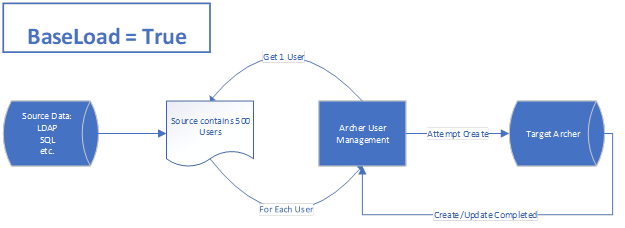
BaseLoad Not Required Values: True/False Default: False
|
Use with caution. BaseLoad supersedes all other settings. When this set to "True" it will be assumed every incoming record is an add. All other behaviour rules will be ignored. No cache will be used and no updates or deletes will be attempted. See CacheMode for cache implications. |
|
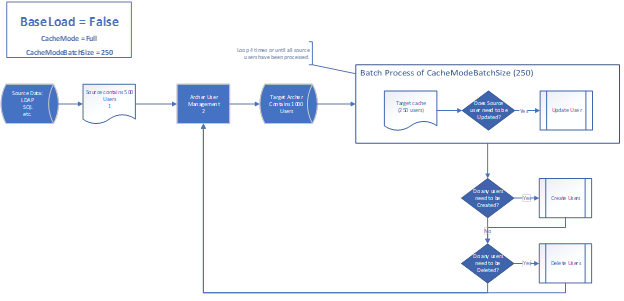
CacheMode Not Required Values: None/Full Default: Full
|
When execution begins, the users in the target Archer instance and source are both collected into memory. This setting specifies what type of caching will be used when gathering target records. Consider the data sets (both source and target) when determining which of these options to use. It may require some tuning to find the setting which matches your performance needs. None: No caching will occur. Every source user record is looked up in the target instance individually. This may result in quicker processing in small datasets. In large datasets, there could be significant performance implications and run times. Full: Users from the target instance are pulled back and processed in batches. The batch size is specified CacheModeBatchSize. This is especially helpful for large target record sets. Using small batch sizes with large source bases will cause longer run times. Tune these settings carefully. |
|
CacheModeBatchSize Required when CacheMode is set to Full. Values: 1000 increments. Default: 1,000 |
This setting is required when CacheMode is set to Full. This is the size of batches of target records which will be processed. When CacheMode is “Full”, use the largest value reasonable to your configuration. |
|
AdminNotificationVerbose Required if Notification = True |
True/False flag to indicate if the admin notification should contain full details regarding the results of the sync process. Set to ‘true’ for verbose details about the sync results? Otherwise, a simple count will be reported. |
UAM behavior flags
|
Setting Name |
Setting Value |
|
|---|---|---|
|
CreateUser Not Required Values: True/False Default: False |
Indicate if users should be created by the sync process in Access Control.
|
|
|
CreateGroup Values: True/False Default: False |
Indicate if groups should be created by the sync process.
|
|
|
CreateActiveOnly Not Required Values: True/False Default: False |
Indicates if inactive users should also be created.
|
|
|
UpdateUser Not Required Values: True/False Default: False |
Indicate if users should be updated by the sync process.
|
|
|
ResetPasswordOnUpdate Not Required Values: True/False Default: False
|
Indicate if user's password should be reset during the sync process. The Archer setting dominates for password changes when comparing user changes. Passwords are not reset on updates unless this value is True. There may be a performance impact. |
|
|
DeleteUser Not Required Values: True/False Default: False
|
Indicate if users should be deleted by the sync process. This setting is only available for SQL. When this setting is true, the user will be deleted if the corresponding value is set in the source record. If the source data indicates delete but DeleteUser is set to ‘False’, the user will not be deleted. The user will be handled as specified in the mapping reference. Check the mapping for specifics for each specific source. |
|
|
GroupReplace Not Required Values: True/False Default: False |
True replaces target groups with the data from the source location. False merges the group membership details.
|
|
|
RoleReplace Not Required Values: True/False Default: False
|
True replaces target roles with the data from the source location. “False” merges the roles membership details. RoleReplace will only work with the SQL sources. This setting is ignored for all other source types. |
|
|
NullAttributesAllowedList Not Required |
Defines which user attributes are allowed to be empty during synchronization. If an attribute is included in this list, it may be updated with a null/empty value from the source. If an attribute is not included in this list and the source provides it as empty, the existing value in Archer is preserved and not overwritten. |
|
| MaxDop Not Required Default: 0 |
Defines the maximum level of parallel processing, enabling clients to tune parallel execution based on system compatibility, available resources, and performance requirements to achieve optimal throughput while maintaining system stability.
|
|
|
StaticDefaultWorkspaceId Not Required Values : Valid Workspace ID or -1 |
Specifies the default Home Workspace to be assigned to users during creation. A valid Workspace ID must be provided to assign a default workspace. |
|
|
StaticDefaultDashboardId Not Required Values : Valid Workspace ID or -1 |
Specifies the default Home Dashboard to be assigned to users during creation. A valid Dashboard ID must be provided to assign a default dashboard. If set to -1 the existing value is preserved and no default dashboard is assigned. |
|
|
LDAPConfigID Not Required Note: This parameter should be blank if there is no LDAP configuration in your archer instance. |
If there is a DomainId present in the source (see the mapping XLSX), then it is used. Otherwise, the LDAPConfigID in the .config is used. That is, DomainId takes precedence over LDAPConfigID. If neither is used, no LDAP ID is configured. To specify an existing config, use the ID as found in the LDAP Configurations page. Hover the cursor over the [Name]. The ID will appear in the lower left corner. Using LDAP configurations with multiple users with the same username, will result in multiple user. That is, if there is a manual user, freemd, with no LDAP/Domain and a user is created with one specified, these will appear as distinct users.
|
Security related parameters
These are Archer Security Parameter related details for password generation. These settings must match the user’s Archer Security Parameter.
|
Setting Name |
Setting Value: Default Count of Characters |
|---|---|
|
AlphaCharsRequired Required |
2 |
|
LowercaseCharsRequired Required |
1 |
|
UppercaseCharsRequired Required |
1 |
|
NumericCharsRequired Required |
1 |
|
Min wordLength Required |
9 |
Target Archer instance settings
|
Setting Name |
Setting Value |
|---|---|
|
TargetArcherBaseUrl Required |
Full base URL of the target Archer instance where the users will be provisioned. |
|
TargetCacheFilePath Default to EXE path |
Directory where the product can store a cache file of module and field IDs. |
|
TargetCacheFileEncryptionPassphrase Required
|
Passphrase used to encrypt the cache file. Example: d0n7TryTh1s@h0m3! |
|
TargetUseSslValidation Default: True
|
True/False If you have Archer configured to use HTTPS and have a self-signed SSL certificate or non-perfected SSL certificate, verify that the TargetUseSslValidation parameter is set to ‘False’. |
|
TargetArcherInstance Required |
Instance name of the target Archer platform. |
|
TargetArcherUser Required |
Username of user that should be used when interacting with the APIs and creating/updating user accounts. |
|
TargetArcherPassword Required |
Encrypted password of the TargetArcherUser. (Encrypt it using -encrypt command)
|
|
TargetUseDefaultCredentials Required |
Indicate of RESTful/SOAP API calls use Windows Integrated security. True: Use the domain service account to interact with Archer. False: The anonymous user account will interact with Archer. |
LDAP settings
Supported attributes and examples are in Archer User Account Management Tool Attribute Mapping Reference file. It can be found in the documentation folder of the Archer User Account Management zip file.
The use of AD Explorer may be helpful with configuring these parameters.
|
Setting Name |
Setting Value |
|---|---|
|
LDAPUseSSL Required Default: true |
true/false If your have LDAP configured to use HTTPS and have a self-signed SSL certificate or non-perfected SSL certificate. |
|
LDAPBaseDN Required |
Base DN of the LDAP source (corp.company.com)
|
|
LDAPUserBaseOU Required |
Base OU where users should be pulled from: (ou=aaaa,dc=corp,dc=company,dc=com;ou=bbbb,dc=something) |
|
LDAPUserFilter Required |
Filter used to identify what users qualify for synchronization.
|
|
LDAPGroupBaseOU Required |
Base OU where groups should be pulled from (ou=bbbb,dc=corp,dc=company,dc=com) |
|
LDAPGroupFilter Not Required |
LDAP filter used to identify what groups should be synchronized.
|
|
LDAPUserName Required |
Username to authenticate against the LDAP source
|
|
LDAPPassword Required |
Encrypted password of the user. See the Encrypt topic. |
|
LDAPDomain Required |
Domain of the user above |
|
LDAPwhenChanged Not Required |
How many hours back should it search in the LDAP source for changed users? Set to "" for a full sync. LDAPwhenChanged and LDAPwhenCreated are AND parameters. That is, if both are specified, then both conditions need to be met. If either criteria is needed separately, use separate configurations. |
|
LDAPwhenCreated Not Required |
How many hours back should it search in the LDAP source for created users? Set to "" for a full sync. LDAPwhenChanged and LDAPwhenCreated are AND parameters. That is, if both are specified, then both conditions need to be met. If either criteria is needed separately, use separate configurations. |
|
LDAPuserAccountControl Not Required |
Semicolon delimited list of values that filter as an 'Active' user to be brought into Archer. For example:“512;544;520” Defaults to Inactive is no value is found or doesn't match configured values defined as active in LDAPuserAccountControl option in the .config file. |
SQL settings
For the possible column headers and options, see Archer User Account Management Tool Attribute Mapping Reference file. It can be found in the documentation folder of the Archer User Account Management zip file.
When it does its initial test of the SQL source, the full query is run. If there are many users in the source, this may take some time.
|
Setting Name |
Setting Value |
|---|---|
|
SQLConnectionString Required |
Encrypted connection string to connect to the SQL source See the Encrypt topic. |
|
SQLQueryFile Required |
Full path and filename of the file containing the SQL query.
|
Azure settings
|
Setting Name |
Setting Value |
|---|---|
|
AzureLoginURL |
This will either be the standard URL from Microsoft or your vanity URL. E.g., https://login.microsoftonline.com |
|
AzureGraphAPIURL |
|
|
AzureClientID |
client_id provided for authentication. Example: prd4ae9999-8888-6666-4444-88bd62b765c7 |
|
AzureTenantID |
tenant_id provided for authentication. Example: prd4ae9999-8888-6666-4444-88bd62b765c7 |
|
AzureSecret |
Value returned as a result of the AzureLoginURL and token. This value should be encrypted and placed in the config file. (Encrypt it using -encrypt command) Example: Limpo*)&hp98h0nLKHi8yhpjk08BGHhkjk |
|
AzureUserFilter |
OData based URL parameter to pass in the request that filters/adjusts the results for users. Example: startswith(givenName, 'J') |
|
AzureGroupFilter |
Azure Graph API for group membership is separate, but the tool does lookup matching groups. OData based URL parameter to pass in the request that filters/adjusts the results for groups.E.g.:?$filter=startswith(groupName, 'J') Note: This filter is only applicable to the groups and not for users in the groups. Group filter does not affect the creation/updating of the users. |
|
AzureCreatedFilterHours |
Filter users created during last ‘x’ hours. Inputted number is in hours. |
|
AzureonPremisesLastSyncFilterHours |
Filter users synced during last ‘x’ hours. Inputted number is in hours. |
| AzureGetAzureUserGroupsPagingId | Sync Groups Based on userPrincipalName or Id by default it takes userPrincipalName |
Email/Notification settings
If you are using an on-prem version of Archer, you can duplicate the settings from the ACP.
|
Setting Name |
Setting Value |
|---|---|
|
Notification Default: False |
True/False flag to indicate if user should receive emails regarding the create/update process. |
|
NotificationSubject Required if Notification = true |
Subject of the email notifications.
|
|
SMTPServer Required if Notification = true |
Address of the SMTP server that should be used to send the emails from the process.
|
|
SMTPFrom Required if Notification = true |
Indicated what email address the notifications from the process should be sent from/as. This is the email address or distribution list of any admins that should be notified of the results. Use ;(semicolon) separated list Set to "" to disable. |
|
AdminNotification Required if Notification = True |
Semicolon delimited list of email addresses that should receive notification of the sync results
|
These files support email messages to user for changes to their user accounts. Make changes as desired to these templates:
Create or Updating users
CreateUpdateEmailTemplate.txt
CreateUpdateEmailTemplate.html
Password notifications (a separate message is sent for password notifications):
PasswordEmailTemplate.txt
PasswordEmailTemplate.html
Network connectivity settings
If a proxy is required to access your Archer instance, specify the custom HTTP header for communications to Archer (Proxy Authorization Token) here.
|
Setting Name |
Setting Value |
|---|---|
|
SourceCustomHeaderName Not Required |
Custom HTTP header for communications to Archer (Proxy Authorization Token. |
|
SourceCustomHeaderValue Not Required |
Value of custom HTTP header needed to reach source or target Archer instance. |
|
SourceWebProxy
|
URL to get to the Source Archer instance. Delimited array of configuration values needed to route the process through a proxy server. Example: https://localhost;port;username;encryptedpassword;userdomain https://localhost;port;username;encryptedpassword https://localhost;port https://localhost;port;username;encryptedpassword;userdomain |
|
TargetCustomHeaderName
|
Custom HTTP header for communications to Archer (Proxy Authorization Token. |
|
TargetCustomHeaderValue
|
Value of custom HTTP header needed to reach source or target Archer instance. |
|
TargetWebProxy |
URL to get to the Target Archer instance. Delimited array of configuration values needed to route the process through a proxy server. Example: https://localhost;port;username;encryptedpassword;userdomain https://localhost;port;username;encryptedpassword https://localhost;port https://localhost;port;username;encryptedpassword;userdomain |
Troubleshooting
|
Causes |
Solution |
|---|---|
|
General items to check: |
|
|
What if it says that the token is incorrect? |
|
BaseLoad and CacheMode operations
Filters for configuring LDAP
Use a tool, such as Microsoft Active Directory Explorer for example, to assist in determining the filters required for configuring LDAP. (Archer does not support Active Directory Explorer.)
Certification environment
Date tested: February 2026
|
Product Name |
Version Information |
Operating System |
|---|---|---|
|
Archer |
2025.12 |
Virtual Appliance |