Important: This topic is for the Classic Record experience. To view the content for the Next Generation Record experience see Records. For information on Classic experiences, see Archer Classic Experiences.
Record relationships include any cross-referenced field, related record field, or sub-form in that record. When you select the Related icon ( ), the field and its relationships display on the Relationship Visualization page.
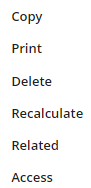
To view the relationships of a record, click  on the toolbar of the record details, as shown in the following example:
On this page
Record Nodes
Clicking displays the record nodes for the Navigation.
Record node navigation
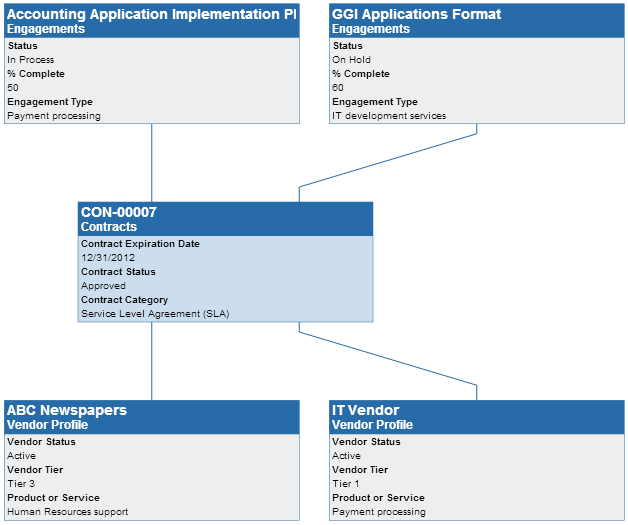
The following example shows the first level links of a record node.
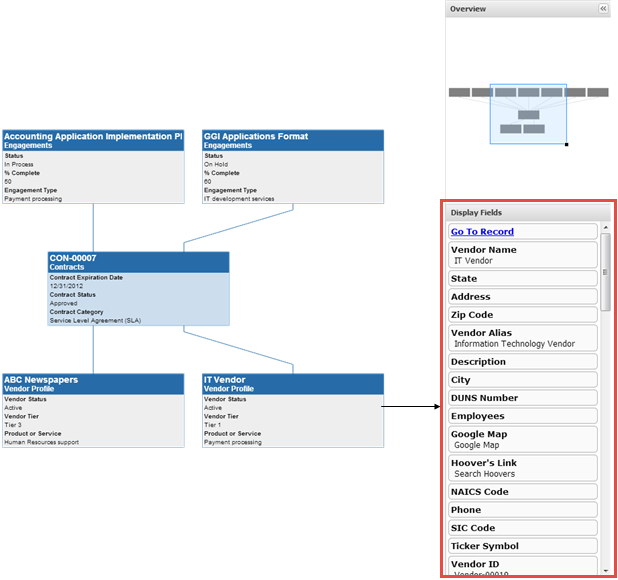
Record Node Display Field
Single click a record node to refresh the Display Field list with the fields of that record.
Record Node Relationships
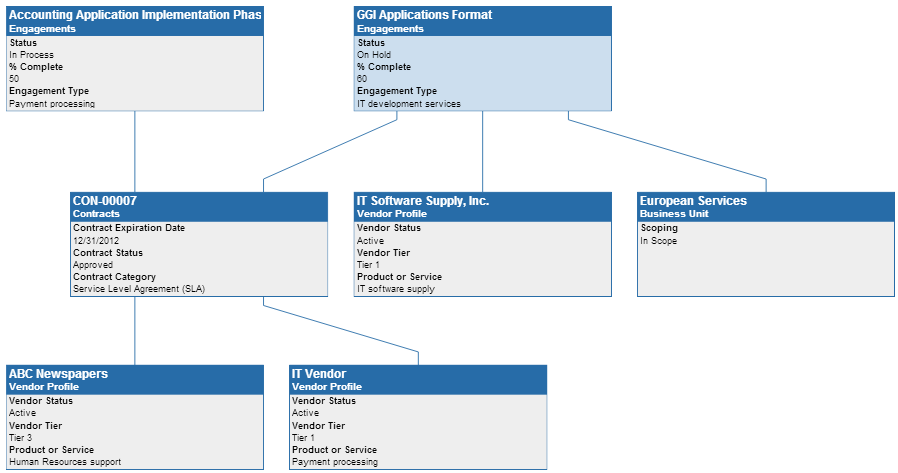
Double-click a record node to show its relationships to other records.
Go to Record Details from Relationship Visualization
-
Go to the Relationship Visualization page.
- From the menu, click the solution workspace.
- Go to the Search Results page, and click the link to the record that you want to view.
- Click on the toolbar.
- After finding the record you want to edit from a record node, click the record node to refresh the Display Fields list.
- Click Go To Record.
The record details for the record selected in Relationship Visualization are displayed.


